Payment Schedules & Milestones
Role Required: SOCIETY_ADMIN
Navigation: Sidebar → Settings → Milestone
Last Updated: March 2026 | Portal Version: 1.0
Overview
A Payment Schedule defines how the total booking amount is broken into milestones that the citizen must pay over time. Each milestone specifies a percentage of the total amount, a due date (calculated from booking date), and an optional grace period. The system sends automatic reminders before milestones become due and tracks overdue payments.
Payment schedules can be configured at the society level or layout level (layout overrides society).
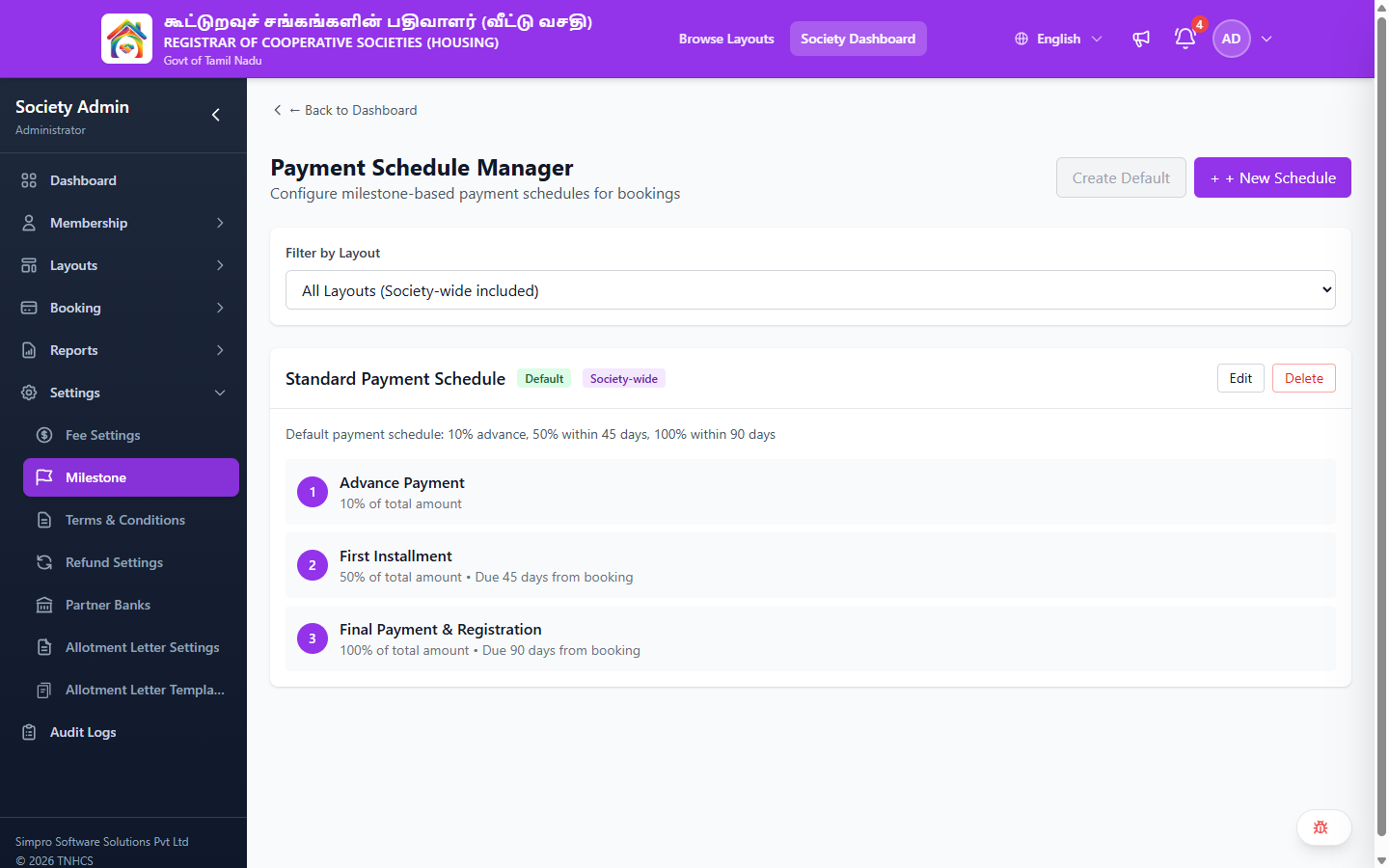
Payment Schedule Manager
The Milestone page shows all payment schedules for your society.
Header Actions:
- ← Back to Dashboard — Returns to admin dashboard
- Create Default — Creates a default schedule (disabled if one already exists)
- + New Schedule — Create a new custom payment schedule
Filter:
- Filter by Layout — Dropdown: All Layouts (Society-wide included), or select a specific layout
Schedule Cards:
Each schedule is displayed as a card showing:
- Schedule Name (e.g., "Standard Payment Schedule")
- Default badge (if it is the default schedule)
- Society-wide or layout-specific badge
- Description — Summary of the schedule
- Edit / Delete buttons
- Milestone Steps — Numbered list of milestones with:
- Milestone name (e.g., "Advance Payment", "First Installment")
- Percentage of total amount
- Due timeline (e.g., "Due 45 days from booking")
Payment Schedule Structure
Schedule: "Standard 4-Milestone Plan"
  ├── Milestone 1: Advance (10%) — Due: Booking Day — Mandatory
  ├── Milestone 2: First Installment (40%) — Due: 30 days — Mandatory
  ├── Milestone 3: Second Installment (75%) — Due: 90 days — Mandatory
  └── Milestone 4: Final Payment (100%) — Due: 180 days — Mandatory
Milestone Properties
| Property | Description |
|---|---|
| Milestone Name | Display name (e.g., "Advance", "First Installment", "Registration") |
| Milestone Order | Sequence number (1, 2, 3...) |
| Percentage Target | Cumulative % of total amount due by this milestone |
| Days from Booking | Number of days after booking date when this milestone is due |
| Grace Period Days | Extra days before the milestone is considered overdue |
| Is Mandatory | Whether this milestone must be paid (vs. optional/informational) |
Percentage targets are cumulative, not incremental. If Milestone 1 is 10% and Milestone 2 is 40%, the citizen must have paid 40% of the total by Milestone 2 — not an additional 40%.
Creating a Payment Schedule
- Navigate to Settings → Payment Schedules
- Click Create New Schedule
- Enter:
- Schedule Name: e.g., "Standard Plan", "Premium Fast-Track"
- Description: Brief explanation of this schedule
- Level: Society-wide or specific to a Layout
- Is Default: Set to Yes if this should be the default schedule
- Add milestones:
Adding Milestones
For each milestone, enter:
| Field | Example | Notes |
|---|---|---|
| Name | "Advance" | Descriptive name |
| Order | 1 | Determines display sequence |
| % Target | 10.00 | Cumulative percentage |
| Days from Booking | 0 | 0 = due on booking day |
| Grace Period | 7 | Extra days before overdue |
| Mandatory | Yes | Required payment |
Typical Schedule Examples
Standard 4-Milestone Plan:
| # | Milestone | Cumulative % | Due After | Grace |
|---|---|---|---|---|
| 1 | Advance | 10% | 0 days | 0 days |
| 2 | First Installment | 40% | 30 days | 7 days |
| 3 | Second Installment | 75% | 90 days | 7 days |
| 4 | Final Payment | 100% | 180 days | 14 days |
Fast-Track Plan:
| # | Milestone | Cumulative % | Due After | Grace |
|---|---|---|---|---|
| 1 | Advance | 25% | 0 days | 0 days |
| 2 | Balance Payment | 100% | 30 days | 7 days |
Full Payment Plan:
| # | Milestone | Cumulative % | Due After | Grace |
|---|---|---|---|---|
| 1 | Full Payment | 100% | 0 days | 3 days |
How Milestones Are Applied to Bookings
When a booking is created:
- The system selects the appropriate schedule: Layout-specific (if exists) → Society default
- Milestones from the schedule are copied to the booking as Booking Payment Schedules
- Each milestone's due date is calculated:
Booking Date + Days from Booking - The citizen sees their payment schedule in their dashboard
Once a booking is created, its milestones are frozen — changes to the schedule template do NOT retroactively affect existing bookings. Only new bookings use the updated schedule.
Payment Reminders
Automatic Reminders
The system sends payment reminders before milestone due dates. Reminder timing is configured per layout:
Default reminder schedule: 7 days, 3 days, and 1 day before the due date.
Each reminder sends notifications via:
- Push notification (mobile app)
- SMS (if configured)
Configuring Reminder Timings
- Navigate to the Layout → Settings → Reminder Configuration
- Set the reminder sequence:
| Sequence | Days Before Due | Default |
|---|---|---|
| 1 | 7 | ✅ |
| 2 | 3 | ✅ |
| 3 | 1 | ✅ |
You can add, remove, or change the days-before-due for each layout.
Trigger Types
| Type | Description |
|---|---|
| AUTOMATIC | Sent by background job on the scheduled day |
| MANUAL | Admin can manually trigger reminders from the booking detail |
Manually Sending a Reminder
- Open the booking detail
- Navigate to the Payment Schedule tab
- Find the upcoming or overdue milestone
- Click Send Reminder
- The citizen receives a notification immediately
Monitoring Overdue Payments
A milestone becomes overdue when:
Current Date > (Milestone Due Date + Grace Period Days)
Overdue milestones are:
- Highlighted in red in the booking detail
- Flagged on the dashboard (overdue payments count)
- Included in the outstanding payments report
- Included in overdue alerts
Finding Overdue Bookings
- Navigate to Reports → Outstanding Payments
- Toggle Overdue Only filter
- The report shows all bookings with overdue milestones, sorted by severity
Common Scenarios
"I want to change the schedule for a layout but not affect current bookings"
Just update or create a new schedule template. Existing bookings retain their original milestones. Only new bookings will use the updated schedule.
"A citizen is asking for an extension on their due date"
Individual booking milestone dates cannot be modified directly. However:
- The Grace Period provides some buffer
- If further flexibility is needed, contact support to discuss options
- The system will mark any overdue payment but does not auto-cancel bookings for non-payment
"I need a different schedule for a premium layout"
Create a Layout-specific schedule:
- Create Payment Schedule → Select the specific Layout
- Define the milestones
- Set as default for that layout
- New bookings in that layout will use this schedule instead of the society-wide one
"Reminders aren't being sent"
Check:
- Are reminders configured for the layout? (Settings → Reminder Configuration)
- Is the reminder active? (IsActive = true)
- Has the background job run? (Reminders are processed by a background job daily)
- Does the citizen have a valid email/phone for notifications?
- Check notification delivery logs
Related Pages
- Fee Configuration — Charges added to the booking total
- Booking Management — Viewing milestone progress in bookings
- Reports — Outstanding and overdue payment reports
- Settings — Society-level configuration