Receipt Reports (Payment Reports)
Role Required: SOCIETY_ADMIN
Navigation: Sidebar → Reports → Receipt Reports
Last Updated: March 2026 | Portal Version: 1.0
Overview
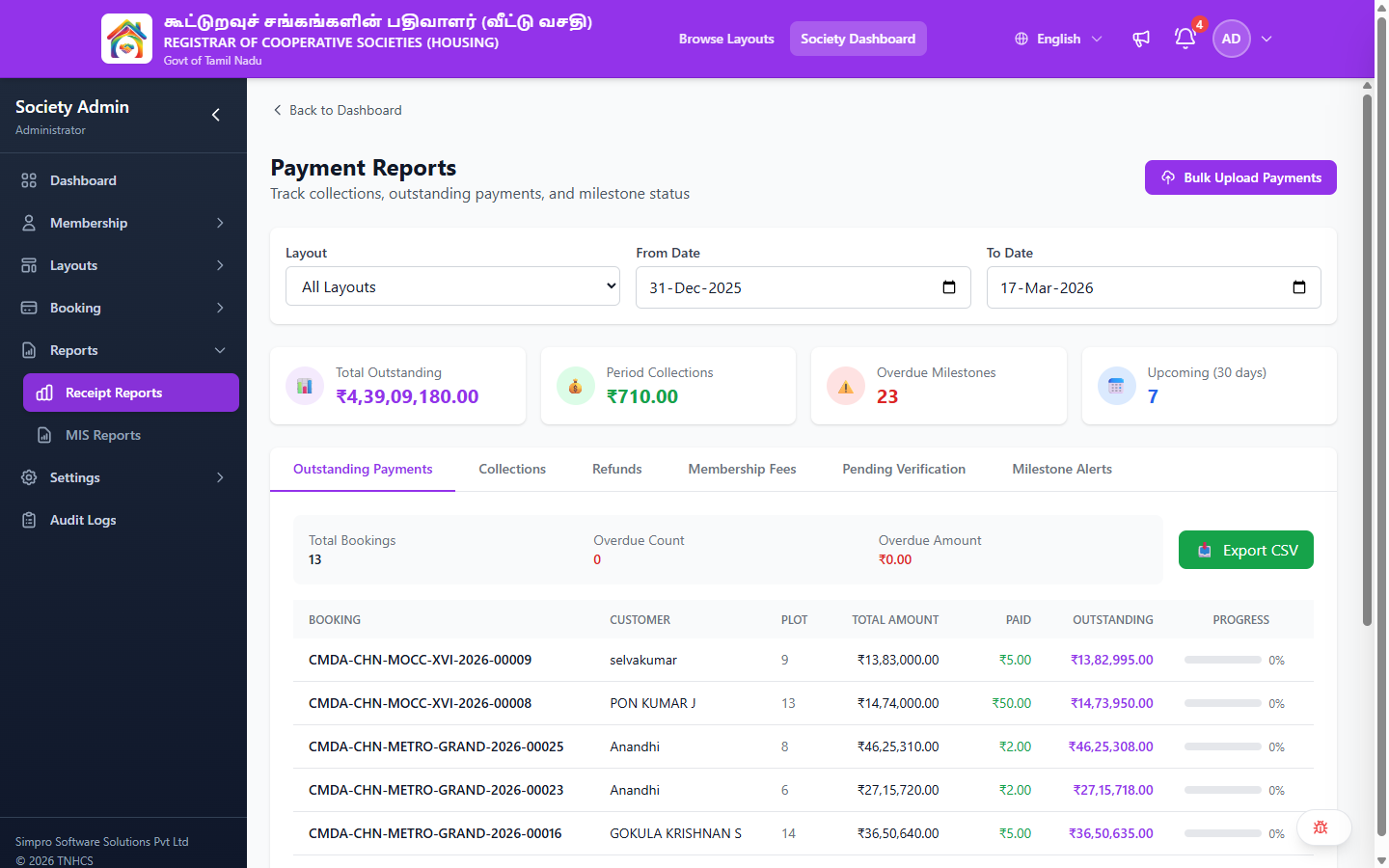
The Payment Reports page provides a unified view of your society's financial position — outstanding payments, collections, refunds, membership fees, pending payment verifications, and milestone alerts. All data can be filtered by layout and date range, and exported as CSV.
Page Layout
Header Actions:
- Back to Dashboard — Returns to admin dashboard
- Bulk Upload Payments — Link to bulk payment upload page (/admin/bulk-payments)
Filters:
| Filter | Description |
|---|---|
| Layout | Dropdown — All Layouts, or select a specific layout |
| From Date | Start date for the report period |
| To Date | End date for the report period (defaults to today) |
Summary Cards:
| Card | Icon | Description |
|---|---|---|
| Total Outstanding | 📊 | Total amount outstanding across all bookings |
| Period Collections | 💰 | Total collections received in the selected date range |
| Overdue Milestones | ⚠️ | Count of milestones past their due date |
| Upcoming (30 days) | 📅 | Count of milestones due within the next 30 days |
Report Tabs
The page has six report tabs, each providing a different view of your financial data:
1. Outstanding Payments
Shows all bookings with pending payment amounts.
Sub-summary: Total Bookings count, Overdue Count, Overdue Amount
Table Columns:
| Column | Description |
|---|---|
| Booking | Booking reference number |
| Customer | Customer name |
| Plot | Plot number |
| Total Amount | Full booking price |
| Paid | Amount collected so far |
| Outstanding | Amount remaining to be paid |
| Progress | Percentage of total amount paid (with progress bar) |
Export: 📥 Export CSV button
2. Collections
Detailed breakdown of all payments received during the selected period.
3. Refunds
All refund transactions within the selected period.
4. Membership Fees
Membership fee collections tracked separately from booking payments.
5. Pending Verification
Offline payments awaiting verification (Maker-Checker review).
6. Milestone Alerts
Milestones that are overdue or upcoming, helping you follow up with customers.
Exporting Data
Each report tab has an 📥 Export CSV button that downloads the current filtered data:
- Select the desired Layout and Date Range
- Switch to the report tab you need
- Click 📥 Export CSV
- The CSV file downloads to your browser
Related Pages
- Reports & Analytics — Performance scorecard and executive-level reports
- Booking Management — View and manage individual bookings
- Receipt Verification — Verify pending offline payments
- Payment Schedules — Configure milestones and payment plans