Fee Configuration
Role Required: SOCIETY_ADMIN
Navigation: Sidebar → Settings → Fee Settings
Last Updated: March 2026 | Portal Version: 1.0
Overview
Fees are additional charges applied to bookings beyond the base plot price — such as registration fees, development charges, maintenance charges, and share capital. HOCO RCS (H) uses a three-level hierarchical fee model that allows fees to be configured at the global, society, or layout level, with lower levels overriding higher ones.
Fee Hierarchy
GLOBAL (platform-wide defaults)
  ↓ overridden by
SOCIETY (your society's specific fees)
  ↓ overridden by
LAYOUT (specific to a particular layout)
When calculating booking fees, the system resolves each fee type by checking Layout → Society → Global in that order. The first match wins.
Example
| Fee Type | Global | Your Society | Layout "Green Valley" | Applied |
|---|---|---|---|---|
| Registration Fee | ₹5,000 | ₹7,500 | — | ₹7,500 (society overrides global) |
| Development Charge | ₹200/sqft | ₹200/sqft | ₹250/sqft | ₹250/sqft (layout overrides) |
| Share Capital | ₹10,000 | — | — | ₹10,000 (global default) |
Fee Properties
Each fee configuration has these attributes:
| Property | Description |
|---|---|
| Fee Type | Category of the fee (see Fee Types below) |
| Fee Value | Amount (₹ fixed) or rate (percentage/per-sqft) |
| Source Level | GLOBAL / SOCIETY / LAYOUT |
| Is Mandatory | Whether the fee is always applied |
| Is Active | Whether the fee is currently in effect |
| Display Only | When true: shown in UI but NOT included in payment total |
| Effective From | Start date when fee takes effect |
| Effective To | Optional end date (null = no expiry) |
Fee Types
Common fee types configured in HOCO RCS (H):
| Fee Type | Description | Typical Calculation |
|---|---|---|
| Registration Fee | One-time government registration charge | Fixed amount |
| Development Charge | Infrastructure development levy | Per square foot |
| Maintenance Charge | Monthly/annual maintenance contribution | Fixed or per-sqft |
| Share Capital | Membership share capital (cooperative society requirement) | Fixed amount |
| Legal Fee | Legal documentation charges | Fixed amount |
| GST | Goods and Services Tax | Percentage |
| Stamp Duty | Government stamp duty on property transactions | Percentage |
| Other Charges | Miscellaneous fees as needed | Fixed or percentage |
Viewing Current Fee Configuration
- Navigate to Settings → Fee Settings
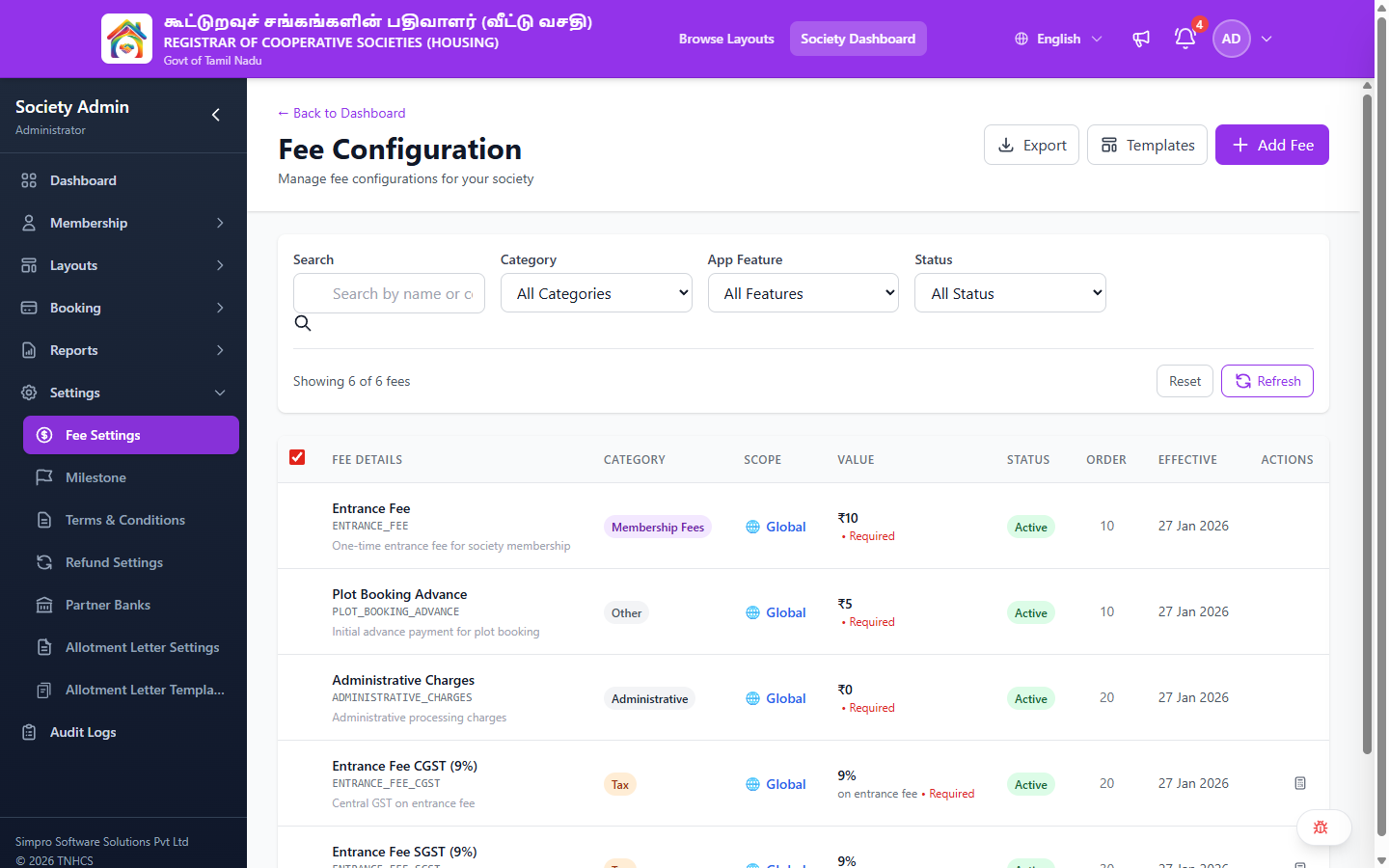
- The page shows all fees configured for your society
Header Actions:
- ← Back to Dashboard — Returns to admin dashboard
- Export — Export current fee list
- Templates — Access fee templates
- Add Fee — Create a new fee configuration
Search & Filters:
| Filter | Options |
|---|---|
| Search | Search by fee name or code |
| Category | All Categories, Booking Fees, Membership Fees, Administrative, Tax, Government Charges, Maintenance, Penalty, Other |
| App Feature | All Features, Plot Booking, Plot Cancellation & Refund, Plot Transfer, Membership Registration, Building Contract, EMI / Installment, Universal (All Features) |
| Status | All Status, Active, Inactive |
Additional controls: Reset button to clear filters, Refresh button, result count (e.g., "Showing 6 of 6 fees")
Table Columns:
| Column | Description |
|---|---|
| Checkbox | Select fees for bulk operations |
| Fee Details | Fee name, code (e.g., ENTRANCE_FEE), and description |
| Category | Fee category (Membership Fees, Tax, Administrative, etc.) |
| Scope | 🌐 Global, Society, or Layout-specific |
| Value | Fixed amount (₹) or percentage (%) with reference fee + Required/Optional badge |
| Status | Active or Inactive |
| Order | Display/calculation sort order |
| Effective | Effective start date |
| Actions | Preview calculation button (for percentage-based fees) |
Color Coding
| Badge | Meaning |
|---|---|
| 🔵 GLOBAL | Platform default — you haven't overridden this |
| 🟢 SOCIETY | Your society-specific fee — overrides global |
| 🟠 LAYOUT | Layout-specific fee — overrides both society and global |
Creating a Society-Level Fee
To override a global fee or add a new one for your society:
- Navigate to Settings → Fee Configuration
- Click Add Fee
- Select Society as the source level
- Choose the Fee Type
- Enter the Fee Value
- Set:
- Mandatory: Yes/No
- Display Only: Toggle on if you want to show the fee for reference without including it in the payment total
- Effective From: When this fee starts
- Effective To: (Optional) When this fee expires
- Click Save
Creating a Layout-Level Fee Override
To set a different fee for a specific layout:
- Navigate to the layout's settings (or Settings → Fee Configuration → Add Fee)
- Set source level to Layout
- Select the Layout from the dropdown
- Configure the fee type, value, and other settings
- Click Save
This fee will apply only to bookings in the selected layout.
Display Only Fees
When Display Only is enabled:
- The fee appears in the booking breakdown visible to citizens
- The fee amount is NOT added to the total payable amount
- Useful for informational charges like "Expected maintenance contribution" or "Future charges"
- Clearly marked in the citizen's view with an informational label
Fee Calculation in Bookings
When a citizen books a plot, fees are calculated as follows:
- Base Price: Plot's base price (area × rate per sqft, or fixed price)
- Applicable Fees: System resolves each fee type using the hierarchy (Layout → Society → Global)
- Non-Display Fees: Fees where Display Only = false are added to the total
- Display Fees: Fees where Display Only = true are shown but not added
- Total Amount: Base Price + Sum of all non-display active mandatory fees
Common Scenarios
"I want to change a fee but keep the old rate for existing bookings"
Existing bookings use the fee amounts calculated at booking time. Changing a fee configuration only affects new bookings. Old bookings retain their original fee amounts.
"A fee should apply only to one layout, not the whole society"
Create a Layout-level fee override:
- Add Fee → Source Level: Layout
- Select the specific layout
- Existing society-level fee of the same type will be overridden for that layout only
"How do I remove a fee?"
- Set the fee's Is Active to false (soft-deactivate), or
- Set the Effective To date to today (expires the fee)
- Never delete fees — deactivate them to maintain the audit trail
"I see a GLOBAL fee I didn't create"
Global fees are configured by the platform administrator (Super Admin / TNCHS Admin). You can override them at society or layout level, but you cannot edit or delete global fees.
Related Pages
- Payment Schedules — Milestone-based payment plans
- Booking Management — How fees appear in bookings
- Reports — Fee collection reports
- Settings — Other society configuration