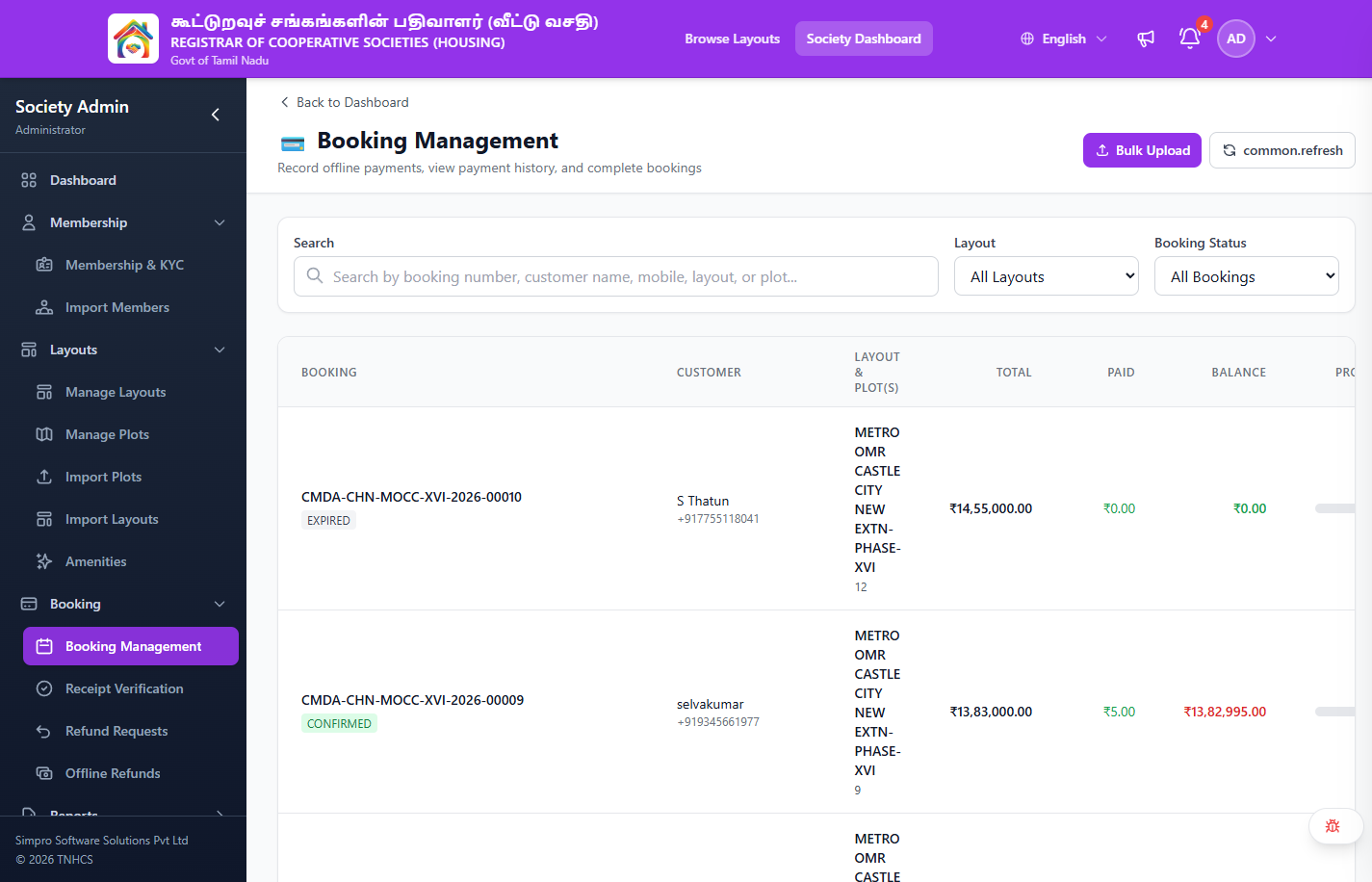
Booking Management
Role Required: SOCIETY_ADMIN
Navigation: Sidebar → Bookings → Booking Management
Last Updated: March 2026 | Portal Version: 1.0
Overview
Bookings are created when citizens make payments on available plots. As a Society Admin, you do not create bookings — citizens do by paying the advance amount. Your role is to monitor booking statuses, reconcile payment anomalies, complete fully-paid bookings, and handle cancellations.
How Bookings Are Created
Citizen selects plot → Plot is held → Citizen pays advance → Booking CONFIRMED
The booking is automatically created when the payment gateway confirms a successful advance payment. No admin approval is required for booking creation.
Booking Status Reference
| Status | Meaning | Admin Action Required |
|---|---|---|
PENDING_PAYMENT | Booking initiated, advance payment awaited | None — wait for citizen |
PAYMENT_INITIATED | Payment in progress on Razorpay gateway | None — automatic |
PAYMENT_FAILED | Gateway returned failure | None — citizen can retry |
CONFIRMED | Advance paid, booking is active | Monitor milestone payments |
PAYMENT_CAPTURED_PENDING_CONFIRMATION | Payment captured but confirmation anomaly | ⚠️ Reconcile manually |
COMPLETED | All payments done, plot fully paid | ✅ Mark as complete |
CANCELLATION_REQUESTED | Citizen or admin requested cancellation | Review and process |
CANCELLATION_APPROVED | Cancellation approved, awaiting refund | Process refund |
REFUND_IN_PROGRESS | Refund being processed via gateway | Monitor refund status |
CANCELLED | Booking terminated, refund settled | None — terminal state |
EXPIRED | Hold expired before payment was made | None — terminal state |
Viewing Bookings
- Navigate to Bookings → Booking Management
- The list shows all bookings in your society
Header Actions
- Back to Dashboard — returns to the admin dashboard
- Bulk Upload — link to
/admin/bulk-paymentsfor uploading offline payments in bulk - Refresh — refreshes the booking list
Filters
| Filter | Options |
|---|---|
| Search | Search by booking number, customer name, mobile, layout, or plot |
| Layout | Dropdown: All Layouts, or select a specific layout |
| Booking Status | Dropdown: All Bookings, Confirmed, Completed, Cancelled, Pending Payment |
Booking List Columns
| Column | Description |
|---|---|
| Booking | Booking ID (e.g., CMDA-CHN-MOCC-XVI-2026-00010) with status badge (CONFIRMED, EXPIRED, etc.) |
| Customer | Customer name and mobile number |
| Layout & Plot(s) | Layout name and plot number(s) |
| Total | Full booking price (₹) |
| Paid | Amount collected so far (₹) |
| Balance | Remaining amount due (₹) |
| Progress | Payment progress percentage (e.g., 0%) |
| Action | Manage button to open booking details |
Booking Detail View
Click on any booking to see the full details:
Overview Section
- Booking ID, status, creation date
- Member details (name, membership number, contact)
- Plot details (layout, plot number, area, facing)
- Price breakdown (base + charges + fees = total)
Payment History
- All payments made (online + offline)
- Each payment shows: date, amount, method, status, transaction ID
Payment Schedule
- Milestone breakdown with due dates
- Paid / Unpaid / Overdue indicators per milestone
Timeline
- Chronological event log (created, payment received, status changes, etc.)
Reconciling Payment Anomalies
When a payment is captured by Razorpay but the confirmation callback fails (network issue, timeout), the booking enters PAYMENT_CAPTURED_PENDING_CONFIRMATION status.
How to Reconcile
- Find bookings with status PAYMENT_CAPTURED_PENDING_CONFIRMATION
- Dashboard alerts highlight these
- Use the status filter in booking list
- Open the booking detail
- Click Reconcile (or Evaluate Payment)
- The system checks:
- Razorpay payment status via API
- Bank transaction confirmation
- Payment amount matches expected amount
- If the payment is confirmed:
- Booking moves to CONFIRMED
- Payment is marked as successful
- If the payment is not found or failed:
- Booking remains — citizen can retry payment
- You may force-close the anomaly
Always verify with Razorpay dashboard before reconciling. Don't confirm a payment that hasn't actually been captured.
Completing a Booking
When a citizen has paid all milestones (100% of the total amount):
- Open the booking detail
- The system shows all milestones — verify all are marked as paid
- Click Evaluate Milestones to check if all payments are received
- If all payments are complete, the Complete Booking button becomes active
- Click Complete Booking
- The booking moves to COMPLETED status
- The plot status changes to SOLD
Before Completing
Verify:
- ✅ All milestone payments received and verified
- ✅ Offline payments are verified (not just recorded)
- ✅ No pending payment disputes
- ✅ Total paid amount matches total booking amount
Cancellation Management
Citizen-Initiated Cancellation
- Citizen clicks Request Cancellation from their dashboard
- Booking status changes to
CANCELLATION_REQUESTED - You receive a notification
- Review the request in booking detail
- Decision:
- Approve → Status moves to
CANCELLATION_APPROVED→ process refund - Reject → Status returns to
CONFIRMED(booking continues)
- Approve → Status moves to
Admin-Initiated Cancellation
You can initiate cancellation on behalf of the society:
- Open the booking detail
- Click Cancel Booking
- Enter the cancellation reason
- The booking enters the cancellation flow
- Refund processing begins automatically (if configured) or awaits your action
Cancellation Flow
CONFIRMED → CANCELLATION_REQUESTED → CANCELLATION_APPROVED → REFUND_IN_PROGRESS → CANCELLED
                                   ↓
                               (or rejected → back to CONFIRMED)
After cancellation is complete:
- The plot returns to AVAILABLE status
- The citizen's refund is processed per refund policy
- All parties are notified
Payment History
For any booking, view the complete payment trail:
- Open the booking detail
- Navigate to Payment History tab
- Each entry shows:
| Field | Description |
|---|---|
| Date | Payment date and time |
| Amount | ₹ amount |
| Method | Online (Razorpay) / CASH / CHEQUE / NEFT / RTGS / IMPS / DD / UPI |
| Transaction ID | Gateway transaction ID or UTR number |
| Status | SUCCESS / FAILED / PENDING |
| Verified | For offline: RECORDED / VERIFIED / VOIDED |
Common Scenarios
"Citizen paid but booking still shows PENDING_PAYMENT"
- Check the booking's payment history for the transaction
- If no payment record exists, the payment may have failed at the gateway
- Ask the citizen to check their bank for the debit
- If debited but no record, check Razorpay dashboard for the payment
- If found in Razorpay, trigger reconciliation
"Double payment detected"
- Check the payment history — look for two payments with similar amounts and close timestamps
- The duplicate payment will be flagged by the system
- Contact support to initiate a reversal for the duplicate
- Do NOT complete the booking based on the doubled amount
"Booking should be completed but Complete button is disabled"
The Complete button activates only when:
- All milestones are evaluated and marked as paid
- No pending or unverified offline payments exist
- Click Evaluate Milestones first to refresh the payment status
"Citizen wants to change their plot after booking"
Plot changes after booking are not directly supported. The process would be:
- Cancel the current booking (with refund)
- Citizen books the new plot This ensures proper financial and audit trails.
Related Pages
- Recording Offline Payments — Log cash/cheque/NEFT payments for bookings
- Receipt Verification — Maker-checker verification process
- Refund Management — Process refunds for cancellations
- Dashboard — Booking KPAs and alerts