Refund Management
Role Required: SOCIETY_ADMIN
Navigation: Sidebar → Booking → Refund Requests
Last Updated: March 2026 | Portal Version: 1.0
Overview
When a booking is cancelled, the citizen may be entitled to a refund of the payments they have made. Refund management covers the entire lifecycle from the initial cancellation request through to the final settlement — including buffer periods, admin approval, online gateway refunds, and offline (manual) refunds.
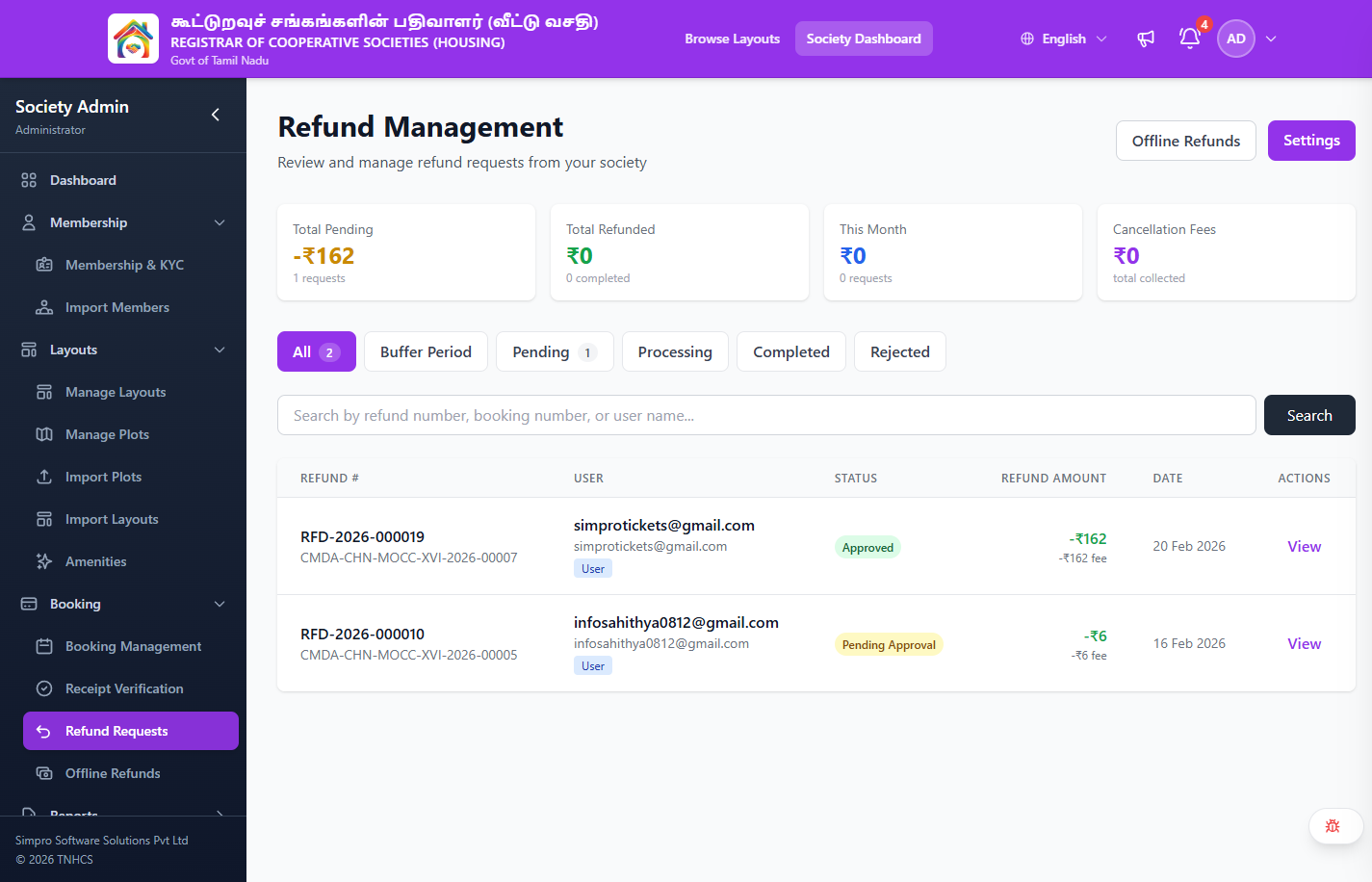
Refund List View
The Refund Management page provides a full overview of all refund requests for your society.
Header Actions:
- Offline Refunds — Link to offline refund processing (/admin/refunds/offline)
- Settings — Link to refund policy configuration (/admin/refunds/settings)
Summary Cards:
| Card | Description |
|---|---|
| Total Pending | Total amount and count of pending refund requests |
| Total Refunded | Total amount and count of completed refunds |
| This Month | Refund amount and count for the current month |
| Cancellation Fees | Total cancellation fees collected |
Status Tabs:
Filter refunds by status using these tabs:
- All — All refund requests (with count)
- Buffer Period — Requests in cooling-off period
- Pending — Awaiting admin approval (with count)
- Processing — Refund in progress
- Completed — Fully settled
- Rejected — Denied by admin
Search: Search by refund number, booking number, or user name.
Table Columns:
| Column | Description |
|---|---|
| Refund # | Refund number (e.g., RFD-2026-000019) and associated booking number |
| User | User email/name and role badge (User/Admin) |
| Status | Current status badge (Approved, Pending Approval, etc.) |
| Refund Amount | Refund amount and cancellation fee breakdown |
| Date | Date of the refund request |
| Actions | View — Opens the refund detail page |
Refund Status Lifecycle
AWAITING_BUFFER → PENDING → APPROVED → PROCESSING → COMPLETED
                    ↓           ↓           ↓
                 REJECTED    REVOKED    AWAITING_OFFLINE_REFUND → COMPLETED
                                            ↓
                                     PARTIALLY_COMPLETED
                                            ↓
                                          FAILED
Status Reference
| Status | Meaning | Admin Action |
|---|---|---|
AWAITING_BUFFER | In cooling-off period — admin can contact citizen to discuss | Optional: contact citizen, or wait |
PENDING | Buffer expired, awaiting admin approval (if required) | Approve or Reject |
APPROVED | Admin approved — ready for refund processing | Initiate refund |
REJECTED | Admin rejected the refund — booking restored to CONFIRMED | None — terminal |
REVOKED | Citizen withdrew their cancellation request within revocation window | None — terminal |
PROCESSING | Online refund submitted to Razorpay gateway | Monitor — wait for gateway |
AWAITING_OFFLINE_REFUND | Online portion done, offline refund pending admin action | Process offline refund |
COMPLETED | All refunds settled (online + offline) | None — terminal ✅ |
PARTIALLY_COMPLETED | Some refunds succeeded, others pending/failed | Retry failed, process remaining |
FAILED | Refund processing failed at gateway | Retry or force-process |
How Refunds Are Initiated
Refunds are triggered by booking cancellation, not created independently:
- Citizen requests cancellation → Society Admin approves → Refund request created
- Admin initiates cancellation → Refund request created automatically
- Refund enters
AWAITING_BUFFER(if buffer is configured) orPENDING(if no buffer)
Refund Amount Calculation
The system automatically calculates refundable amounts:
| Component | Description |
|---|---|
| Total Online Amount | Sum of all online (Razorpay) payments |
| Total Offline Amount | Sum of all verified offline payments |
| Total Paid Amount | Online + Offline |
| Non-Refundable Amount | Membership fee + any non-refundable charges |
| Deduction Amount | Cancellation fee (configured percentage of total) |
| Refundable Online Amount | Online payments minus deductions (online-first deduction) |
| Refundable Offline Amount | Offline payments minus remaining deductions |
Cancellation fees are deducted from online payments first. If the deduction exceeds the online amount, the remainder is deducted from offline payments. This minimizes the admin's manual work.
Step-by-Step: Processing a Refund
1. Review the Refund Request
- Navigate to Refunds → Refund Management
- Click on a refund in
PENDINGstatus - Review:
- Refund Number:
RFD-YYYY-NNNNNN - Booking details: Member name, plot, layout
- Cancellation reason: Why the citizen/admin cancelled
- Amount breakdown: Online, offline, deductions, refundable amounts
- Timeline: When requested, buffer expiry, revocation expiry
- Refund Number:
2. Approve or Reject
To Approve:
- Click Approve Refund
- Add review notes (optional)
- Status moves to
APPROVED - You can now initiate the actual refund
To Reject:
- Click Reject Refund
- Enter the rejection reason (required) — e.g., "Cancellation window expired", "Policy exception denied"
- Status moves to
REJECTED - The booking is restored to
CONFIRMEDstatus - Citizen is notified of the rejection
3. Initiate Online Refund
If there are online payments to refund:
- Open the approved refund request
- Click Initiate Online Refund
- The system creates refund transactions for each original Razorpay payment
- Refunds are submitted to the Razorpay gateway
- Status moves to
PROCESSING - Expect 5-7 business days for the refund to reach the citizen's bank account
4. Initiate Offline Refund
If there were offline (cash/cheque/NEFT) payments:
- The refund request shows AWAITING_OFFLINE_REFUND after online portion is done
- Click Initiate Offline Refund
- Offline refund transactions are created in
PENDINGstatus - Process the actual refund: Prepare cheque / initiate bank transfer to citizen
- Once done, mark the offline refund as Processed with the reference details
- Have another admin Verify the offline refund (Maker-Checker)
5. Completion
When all refund components (online + offline) are complete:
- Status moves to
COMPLETED - Booking status moves to
CANCELLED - Plot returns to
AVAILABLE - Citizen receives completion notification
Buffer Period & Revocation Window
These are configurable per society in Settings:
Buffer Period
- Time between cancellation request and refund processing start
- Purpose: Give admin time to contact citizen and discuss alternatives
- During buffer: Admin can call the citizen, offer alternatives, or let it expire
- Default: Configurable (can be 0 for immediate processing)
Revocation Window
- Time during which the citizen can withdraw their cancellation
- If revoked: Booking returns to
CONFIRMED, refund is cancelled - Default: 24 hours (configurable)
Request → [Buffer Period] → [Revocation Window expires] → PENDING for approval
                              ↑
              Citizen can click "Revoke Cancellation" here
Cancellation Fee
If your society has a cancellation fee configured:
- Calculated as a percentage of the total paid amount
- Deducted from the refund before processing
- Can be waived by admin (CancellationFeeWaived flag)
- Shown in the refund breakdown for transparency
Pending Actions Dashboard
For any refund request, the system shows what actions are available:
| Action | When Available |
|---|---|
| Approve/Reject | Status is PENDING or AWAITING_BUFFER |
| Initiate Online Refund | APPROVED and online amounts exist, not yet initiated |
| Initiate Offline Refund | APPROVED/PROCESSING/AWAITING_OFFLINE_REFUND and offline amounts exist |
| Retry Failed | A refund transaction has FAILED status |
| Force Process | Automatic processing stalled — admin can override |
Common Scenarios
"Citizen wants to cancel but I want to convince them to stay"
- During the Buffer Period, contact the citizen
- If they agree to continue, wait for the revocation window
- They can click Revoke Cancellation in their dashboard
- If they don't revoke, the refund proceeds to PENDING
"Online refund processed but offline refund is pending"
- The system tracks online and offline separately
- Status will be
AWAITING_OFFLINE_REFUNDorPARTIALLY_COMPLETED - Arrange the offline refund (cheque/bank transfer) to the citizen
- Mark the offline refund as processed and verified
- Once both are done, status auto-updates to
COMPLETED
"Refund failed at the gateway"
- Open the refund request → View transactions
- Find the failed transaction(s) — note the gateway error message
- Click Retry to re-submit to Razorpay
- If retry fails repeatedly, contact Razorpay support with the payment ID
- As a last resort, use Force Process to mark as manually resolved
"Admin wants to waive the cancellation fee"
- Open the refund request (before approval)
- Toggle the Waive Cancellation Fee option
- The refund amount will be recalculated without the deduction
- Approve the refund
- The waiver is logged in the audit trail
"Citizen revoked their cancellation but the plot was already released"
This shouldn't happen — the plot is only released when the refund reaches COMPLETED status. If the booking is in CANCELLATION_REQUESTED and the citizen revokes:
- Booking returns to CONFIRMED
- Plot remains BOOKED
- No financial changes occur
Refund Notifications
The system sends notifications at each stage (if enabled in settings):
| Event | Notification |
|---|---|
| Refund Requested | Citizen: "Your cancellation request has been received" |
| Buffer Started | Citizen: "Your refund will be processed after [date]" |
| Revocation Window Expiring | Citizen: "Last chance to withdraw your cancellation" |
| Approved | Citizen: "Your refund has been approved" |
| Rejected | Citizen: "Your refund request was rejected — [reason]" |
| Processing | Citizen: "Your refund of ₹X is being processed. Expected by [date]" |
| Completed | Citizen: "Your refund of ₹X has been completed" |
Related Pages
- Booking Management — Cancellation flow triggers refunds
- Settings — Configure refund policies, buffer period, cancellation fee
- Reports — Refund reports and financial impact
- Recording Offline Payments — Offline payment verification