Receipt Verification (Maker-Checker)
Role Required: SOCIETY_ADMIN
Navigation: Sidebar → Bookings → Receipt Verification
Last Updated: March 2026 | Portal Version: 1.0
Overview
Every offline payment goes through a Maker-Checker dual-control process to prevent fraud and errors:
- Maker (Admin A): Records the offline payment
- Checker (Admin B): Verifies the payment is genuine and accurate
The same admin who recorded a payment cannot verify it. A different Society Admin (or higher-level admin) must perform the verification step.
Why Maker-Checker?
| Risk | Mitigation |
|---|---|
| Fraudulent payment entries | A second person must confirm the payment exists |
| Data-entry errors | Checker reviews amount, reference numbers, and dates |
| Embezzlement | Dual control makes it harder for one person to manipulate records |
| Audit compliance | Full trail of who recorded and who verified |
Verification Workflow
Admin A records payment → Status: RECORDED
                              ↓
Admin B reviews and verifies → Status: VERIFIED ✅
                              ↓
         Payment now counts toward booking progress
If the payment is invalid:
Admin B rejects / Admin A voids → Status: VOIDED ❌
                                      ↓
              Payment has zero financial effect
Step-by-Step: Verifying a Receipt
- Navigate to Bookings → Receipt Verification
- The list shows all payments in RECORDED status awaiting verification
- Click on a payment to open the detail view
Verification Checklist
Before clicking Verify, confirm each item:
| Check | What to Verify |
|---|---|
| ✅ Amount | Does the recorded amount match the actual payment? |
| ✅ Payment Mode | Is the mode correct (Cash/Cheque/NEFT/etc.)? |
| ✅ Reference Number | For Cheque: verify cheque number. For NEFT/RTGS/IMPS: verify UTR number. For UPI: verify transaction ID |
| ✅ Bank Name | Does the bank name match the cheque/transfer? |
| ✅ Payment Date | Is the date accurate? |
| ✅ Booking | Is this payment for the correct booking? |
| ✅ Supporting Evidence | Do you have the original cheque photocopy, bank statement entry, or transfer confirmation? |
Verification Actions
After reviewing the checklist:
To Verify (approve):
- Click Verify Payment
- Confirm the action
- Payment status changes to VERIFIED
- The booking's paid amount is immediately updated
- The booking progress bar increases
- If all milestones are now paid, the booking can be completed
To Void (reject):
- Click Void Payment
- Enter the rejection reason (e.g., "Reference number does not match bank records")
- Payment status changes to VOIDED
- The Maker is notified that their recorded payment was voided
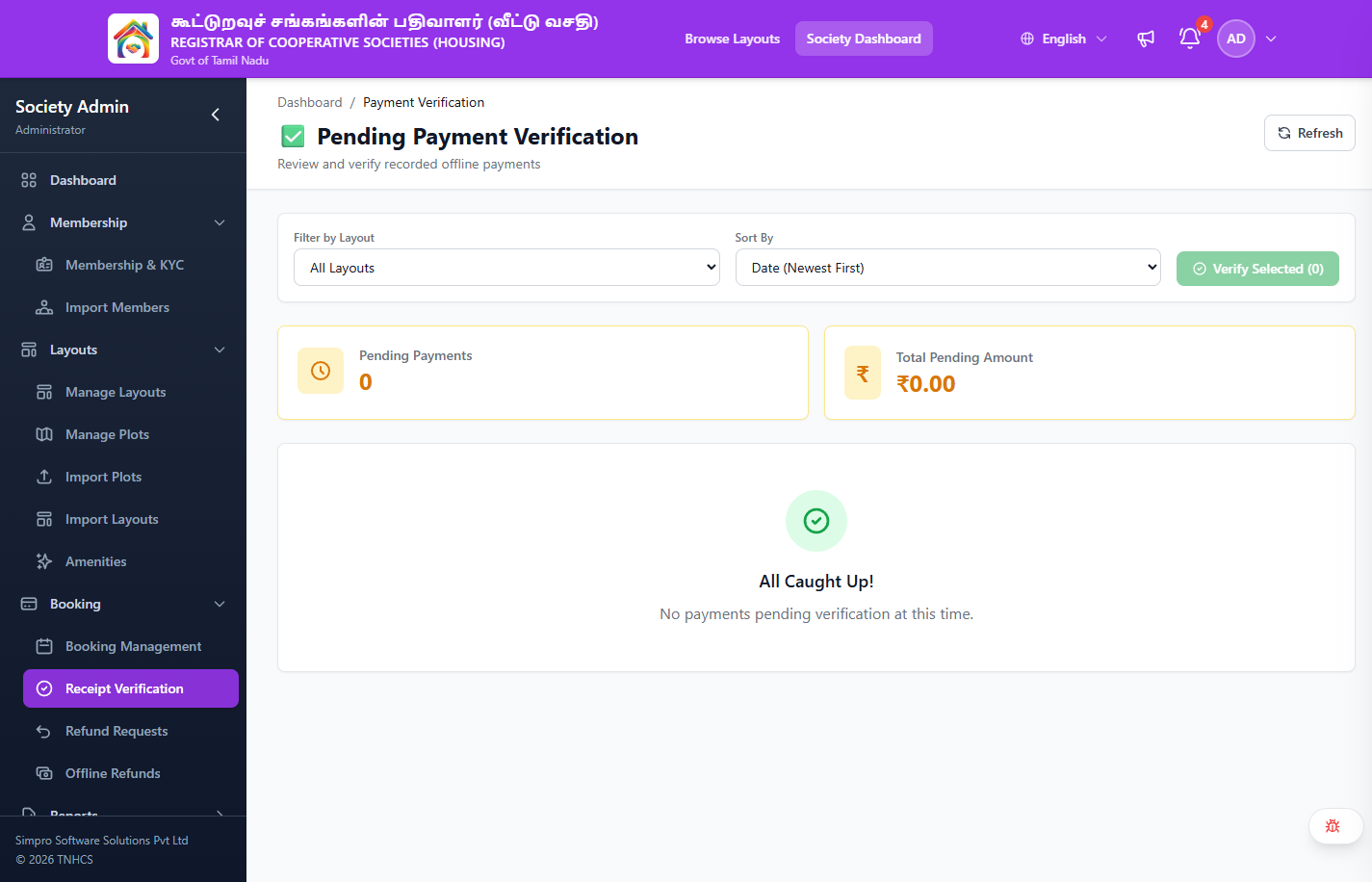
Pending Payment Verification List View
When you open Receipt Verification, you see the Pending Payment Verification screen:
Header Actions:
- Refresh button to reload the list
Filters & Sorting:
| Control | Options |
|---|---|
| Filter by Layout | Dropdown — All Layouts, or select a specific layout |
| Sort By | Date Newest First · Date Oldest First · Amount Highest First · Amount Lowest First |
Bulk Actions:
- Verify Selected (n) — Verify multiple payments at once. Disabled until at least one payment is selected.
Summary Cards:
| Card | Description |
|---|---|
| Pending Payments | Total number of payments awaiting verification |
| Total Pending Amount | Sum of all pending payment amounts (₹) |
When no payments are pending, an empty state message appears: "All Caught Up! No payments pending verification at this time."
Filtering the Verification Queue
| Filter | Options |
|---|---|
| Layout | Filter by layout |
| Sort By | Date Newest First / Date Oldest First / Amount Highest First / Amount Lowest First |
Audit Trail
Each verified or voided payment records:
| Field | Value |
|---|---|
| Recorded By | Admin A's name and timestamp |
| Verified By / Voided By | Admin B's name and timestamp |
| Void Reason | (if voided) Reason entered by the checker |
| IP Address | Logged for audit compliance |
This full trail is visible in the payment detail and in audit logs.
Common Scenarios
"I'm the only Society Admin — how do I verify?"
The Maker-Checker process requires two different users. If your society has only one admin:
- Request your Regional Admin or Super Admin to perform the verification
- Higher-level admins have the ability to verify offline payments for societies under their scope
- Consider requesting an additional admin account for your society
"The citizen's cheque number doesn't match what was recorded"
- Void the payment with reason: "Cheque number mismatch — recorded [X], actual [Y]"
- Ask the Maker to re-record the payment with the correct cheque number
- Verify the corrected entry
"Payment was verified but the amount was wrong"
If a VERIFIED payment has an incorrect amount:
- Void the verified payment (this will reduce the booking's paid amount)
- Record a new payment with the correct amount
- Have the new payment verified
"I see payments from weeks ago still in RECORDED status"
Unverified payments are a risk — they indicate:
- The verification process is being skipped
- There may be a staffing issue (only one admin)
- Contact your Regional Admin if verification is consistently delayed
Best Practices
- Verify daily — don't let payments accumulate in RECORDED status
- Cross-reference — always check against original receipts or bank statements
- Flag anomalies — if a payment looks suspicious, void it and investigate before re-recording
- Keep physical records — maintain photocopies of cheques and transfer receipts as backup
- Separate duties — ideally, the admin who handles cash should not be the one recording it in the system
Related Pages
- Recording Offline Payments — How to record initial payments
- Booking Management — Booking payment history
- Reports — Financial reports with verified vs unverified breakdowns