KYC & Membership Approvals
Role Required: SOCIETY_ADMIN
Navigation: Sidebar → Membership → Membership & KYC
Last Updated: March 2026 | Portal Version: 1.0
Overview
When a citizen wants to book a plot in your society, they must first become a member. After completing KYC verification, citizens submit a membership application for your society. As a Society Admin, you review these applications and either approve or reject them.
Only approved members can book plots.
The Membership Flow
┌──────────────┐     ┌───────────────┐     ┌─────────────────────┐
│   Citizen     │     │   Citizen     │     │     Citizen         │
│ Registers &   │────▶│ Completes KYC │────▶│ Applies for         │
│ Verifies      │     │ (Aadhaar+PAN) │     │ Membership          │
│ Account       │     │               │     │ (selects society)   │
└──────────────┘     └───────────────┘     └──────────┬──────────┘
                                                       │
                                                       ▼
                                           ┌─────────────────────┐
                                           │ PENDING_VERIFICATION │
                                           │ (awaiting your       │
                                           │  review)             │
                                           └──────────┬──────────┘
                                                       │
                                            ┌──────────┴──────────┐
                                            ▼                     ▼
                                    ┌──────────────┐     ┌──────────────┐
                                    │   APPROVED    │     │   REJECTED   │
                                    │               │     │              │
                                    │ • Membership  │     │ • Reason     │
                                    │   Number      │     │   stored     │
                                    │   generated   │     │ • Citizen    │
                                    │ • Can now     │     │   notified   │
                                    │   book plots  │     │ • Can        │
                                    └──────────────┘     │   re-apply   │
                                                          └──────────────┘
Prerequisites
Before reviewing applications, ensure:
- ✅ You are logged in as Society Admin
- ✅ You know your society's membership eligibility criteria
- ✅ You understand the KYC document requirements
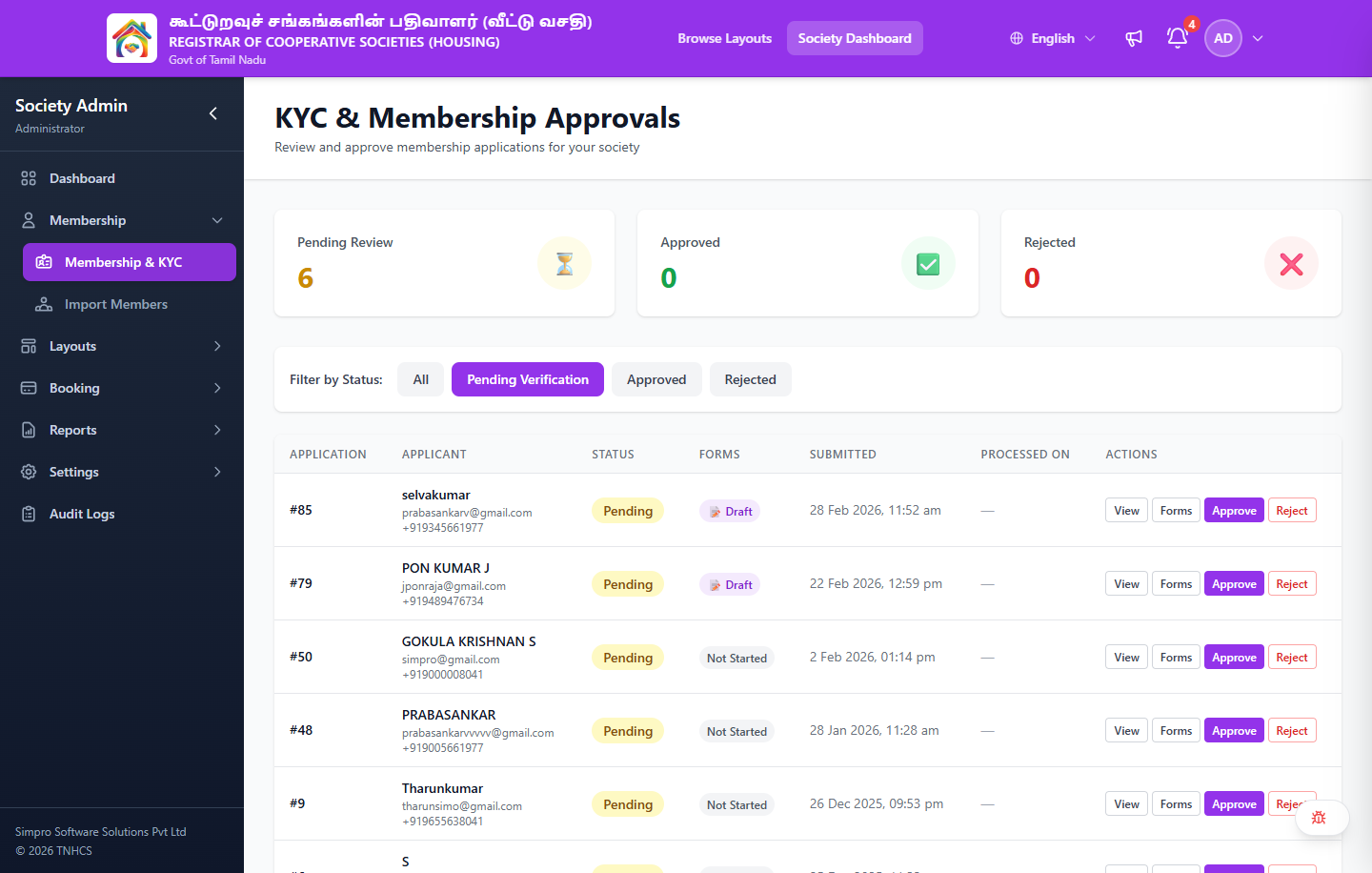
Summary Cards
At the top of the page, three status cards give you an at-a-glance summary:
| Card | Icon | Description |
|---|---|---|
| Pending Review | ⏳ | Number of applications awaiting your review |
| Approved | ✅ | Total approved memberships |
| Rejected | ❌ | Total rejected applications |
Viewing Applications
- Navigate to Membership → Membership & KYC in the sidebar
- The page shows a list of all membership applications
- Use the Filter by Status buttons to filter:
- All — Shows all applications
- Pending Verification — Applications awaiting review (highlighted by default)
- Approved — Only approved members
- Rejected — Only rejected applications
- Applications are sorted by date (newest first)
Application List View
Each row in the list shows:
| Column | Description |
|---|---|
| Application | Auto-generated application number (e.g., #85) |
| Applicant | Citizen's full name, email address, and mobile number |
| Status | Current status — Pending, Approved, or Rejected |
| Forms | KYC forms progress — "Not Started", "Draft" (📝), or "Completed" |
| Submitted | Date and time the application was submitted |
| Processed On | Date and time the application was approved/rejected ("—" if pending) |
| Actions | View, Forms, Approve, Reject buttons |
Reviewing an Application
Click View on any application to see the full details.
What to Check
| Check | What to Look For | Action if Issue Found |
|---|---|---|
| KYC Completion | Status should be VERIFIED_BY_USER | If incomplete, wait — citizen must complete KYC first |
| Identity Documents | Aadhaar + PAN uploaded and confirmed | If documents are unclear, reject with reason |
| Name Consistency | Name matches across Aadhaar, PAN, and profile | If mismatch, reject with "Name mismatch" reason |
| Society Eligibility | Check if citizen meets society-specific criteria | If ineligible, reject with specific reason |
| Duplicate Check | Ensure citizen doesn't already have an active membership | If duplicate, reject with "Duplicate application" |
The portal uses AI-powered document verification (Azure Document Intelligence) to extract details from Aadhaar and PAN. The citizen confirms the extracted data. There is no separate admin KYC approval step — your review covers the overall application including document quality.
Approving a Membership
- Open the application detail view
- Verify all checks pass (see above checklist)
- Click the Approve button
- A confirmation dialog will appear — click Confirm Approval
What Happens on Approval
- Status changes to APPROVED
- A Membership Number is auto-generated in format:
SOC-YYYY-NNNNN- Example:
SOC-2026-00042(42nd member of the society in 2026)
- Example:
- The citizen receives:
- ✉️ Email notification confirming approval with membership number
- 📱 SMS notification
- 🔔 In-app notification
- The citizen can now book plots in your society
Approved memberships cannot be easily reversed. Make sure you've verified the application thoroughly before approving.
Rejecting a Membership
- Open the application detail view
- Identify the reason for rejection
- Click the Reject button
- A dialog will appear — enter the rejection reason (required)
- Click Confirm Rejection
When to Reject
| Reason | Example |
|---|---|
| Incomplete KYC | Documents not uploaded or blurry/unreadable |
| Name Mismatch | Name on Aadhaar doesn't match PAN or profile |
| Duplicate Application | Citizen already has an active membership in your society |
| Ineligible | Citizen doesn't meet society-specific eligibility criteria |
| Fraudulent Documents | Documents appear tampered or fraudulent |
What Happens on Rejection
- Status changes to REJECTED
- Rejection reason is stored in the system
- The citizen receives:
- ✉️ Email with rejection reason
- 📱 SMS notification
- 🔔 In-app notification with reason
- The citizen can re-apply after addressing the issues
Membership Status Reference
| Status | Meaning | Admin Action |
|---|---|---|
PENDING_VERIFICATION | Application submitted, awaiting review | Review and approve/reject |
APPROVED | Membership granted, member number assigned | No action — citizen can book plots |
REJECTED | Application rejected with reason | No action — citizen may re-apply |
Membership Fee
Some societies require a membership fee. The fee tracking works as follows:
- Fee Amount — Configured in your society's fee settings
- Payment Status — Tracked per membership (
MembershipFeePaid) - Payment Method — Citizen pays online via the portal; or you record an offline payment
- Payment Timing — Can be required before membership approval or after (configurable)
To check if a membership fee has been paid:
- Open the membership detail
- Look for the Membership Fee section
- Status shows: Paid / Unpaid / Partial
Temporary Memberships
In some cases, you may issue temporary memberships (flagged with IsTemporary = true):
- Used for: citizens who are booking via special programs or promotions
- Auto-created via:
AUTO_BOOKINGorAUTO_BOOKING_RETRYflows - These can be converted to permanent memberships later
Bulk Member Import
For migrating existing members from offline records:
- Navigate to Membership & KYC → Import Members
- Download the CSV template
- Fill in member details (name, email, mobile, Aadhaar, membership number, etc.)
- Upload the completed CSV
- Review the validation results — fix any errors
- Confirm the import
Bulk import is intended for initial migration of existing members. For new applications, always use the standard approval workflow.
Common Scenarios
"A citizen's KYC shows NOT_SUBMITTED but they say they completed it"
The citizen may have uploaded documents but not clicked the final Confirm button. Ask them to:
- Log in to their account
- Go to Dashboard → KYC Verification
- Review the extracted data and click Confirm
"Can I reverse an approved membership?"
There is no direct "reverse approval" action. If a membership was approved in error, contact your Super Admin to handle the situation through user management.
"A citizen applied to the wrong society"
Reject the application with the reason "Applied to wrong society — please apply to [correct society name]". The citizen can then submit a new application to the correct society.
"Same citizen applied twice"
Reject the duplicate with reason "Duplicate application". Only one active membership per citizen per society is allowed.
"How many pending applications can I expect?"
This depends on your society's activity. During layout launches, expect higher volumes. Use the dashboard's Pending Actions count to monitor the queue.
Related Pages
- Getting Started — Daily checklist includes membership review
- Dashboard — Pending count shown on KPA cards
- Fee Configuration — Setting up membership fees
- Bulk Import — Importing existing members via CSV