Bulk Import & Excel Upload
Role Required: SOCIETY_ADMIN
Navigation: Sidebar → Settings → Bulk Import
Last Updated: March 2026 | Portal Version: 1.0
Overview
Bulk import allows you to populate the system with large datasets at once using Excel (.xlsx) files, instead of entering data one record at a time. This is especially useful when onboarding a new society with existing members, layouts, and plots.
Supported Import Types
| Import Type | What It Does | When to Use |
|---|---|---|
| Members | Import membership applications in bulk | Migrating existing society members |
| Layouts | Import layout definitions | Setting up multiple layouts at once |
| Plots | Import plot data for a layout | Importing plot inventory (50-500+ plots) |
| Bulk Payments | Import offline payment records in bulk | Recording historical or batch offline payments |
General Import Process
All bulk imports follow the same workflow:
Step 1: Download the Template
- Navigate to Settings → Bulk Import (or the appropriate management page)
- Click Download Template
- Open the Excel (.xlsx) template in Excel or Google Sheets
- The template includes column headers and sample data rows
Step 2: Prepare Your Data
- Fill in the rows with your data, following the column format exactly
- Do NOT modify column headers
- Do NOT add extra columns
- Save the file as
.xlsxformat
Step 3: Upload
- Click Upload or Import
- Select your prepared Excel (.xlsx) file
- The system validates the file:
- Column headers match expected format
- Required fields are present
- Data types are correct (numbers, dates, etc.)
- No duplicate entries
- If validation passes, see the preview
- If validation fails, download the error report showing which rows have issues
Step 4: Review & Confirm
- Review the preview showing what will be imported
- Check the count: "X records will be imported"
- Review any warnings (e.g., "3 rows skipped — duplicate member numbers")
- Click Confirm Import
Step 5: Import Results
After import completes:
- Success count: Records successfully imported
- Skipped count: Records skipped (duplicates or non-critical issues)
- Error count: Records that failed (with specific error messages)
- Option to Download Error Report with row-by-row details
Member Import
Navigate to: Sidebar → Membership → Import Members (/admin/member-import)
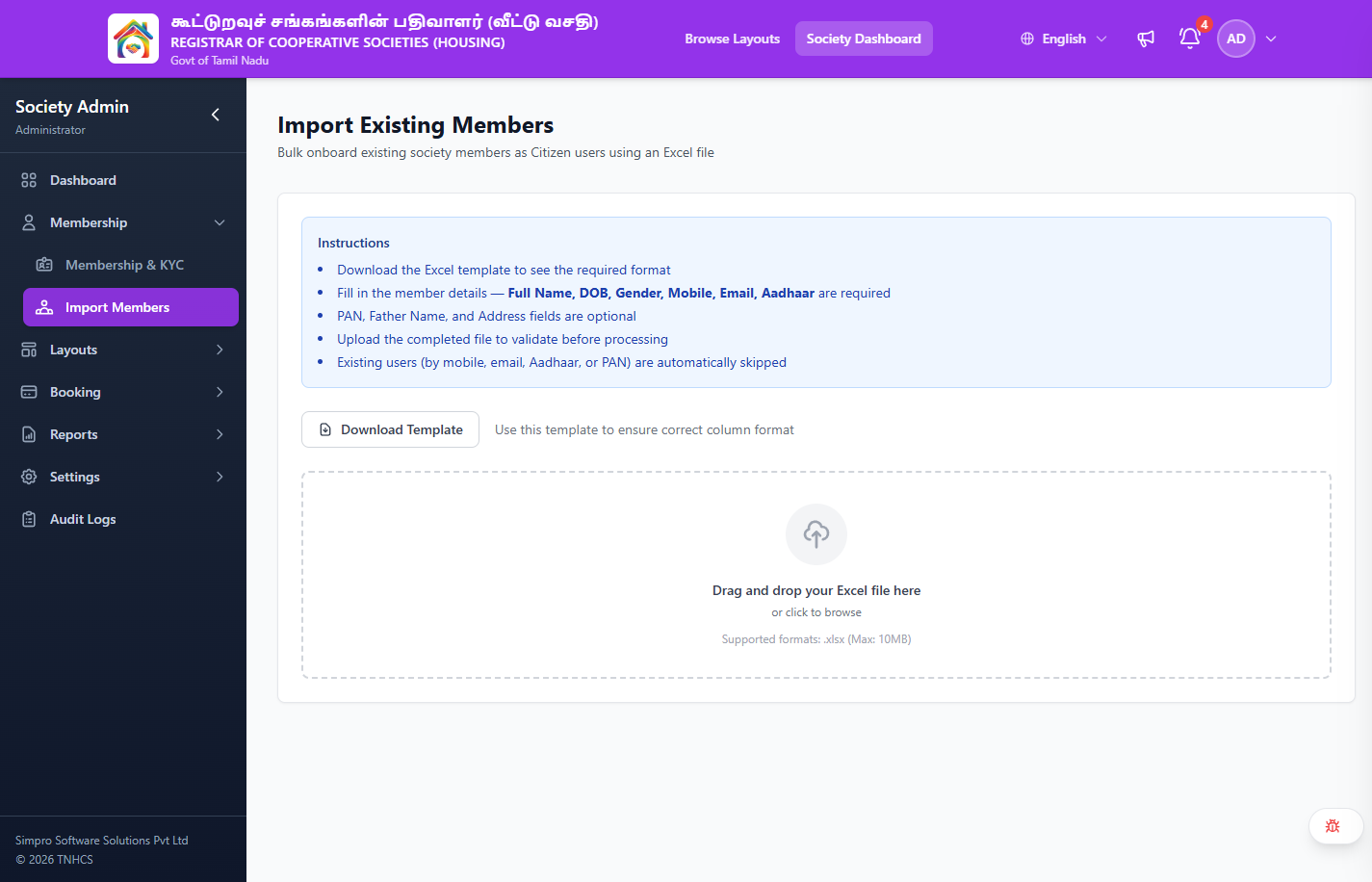
The page title is "Import Existing Members" — used to bulk onboard existing society members as Citizen users using an Excel file.
Instructions (shown on page)
- Download the Excel template to see the required format
- Fill in the member details — Full Name, DOB, Gender, Mobile, Email, Aadhaar are required
- PAN, Father Name, and Address fields are optional
- Upload the completed file to validate before processing
- Existing users (by mobile, email, Aadhaar, or PAN) are automatically skipped
Excel Template Columns
| Column | Required | Description | Example |
|---|---|---|---|
| full_name | ✅ | Member's full name | "Rajesh Kumar" |
| dob | ✅ | Date of birth | "1990-05-15" |
| gender | ✅ | Gender | "Male" / "Female" / "Other" |
| mobile | ✅ | Mobile number with country code | "+919876543210" |
| ✅ | Email address (must be unique) | "rajesh@email.com" | |
| aadhaar_number | ✅ | 12-digit Aadhaar number | "123456789012" |
| membership_number | ✅ | Society membership number | "MBR-2024-001" |
| pan_number | ❌ | PAN card number | "ABCDE1234F" |
| father_name | ❌ | Father's name | "Kumar Rajan" |
| address | ❌ | Full address | "123 Main Street, Chennai" |
Upload Area
- Drag and drop your Excel file or click to browse
- Supported formats:
.xlsx(Max: 10MB)
What Happens on Import
- A user account is created for each member (if email/mobile doesn't already exist)
- Existing users (matched by mobile, email, Aadhaar, or PAN) are automatically skipped
- A membership application is submitted with status
PENDING_VERIFICATION - Members still need to be approved individually through the normal membership approval workflow
- Imported members receive an email invitation to set up their account
Plot Import
Navigate to: Sidebar → Layouts → Import Plots (/admin/plot-import)
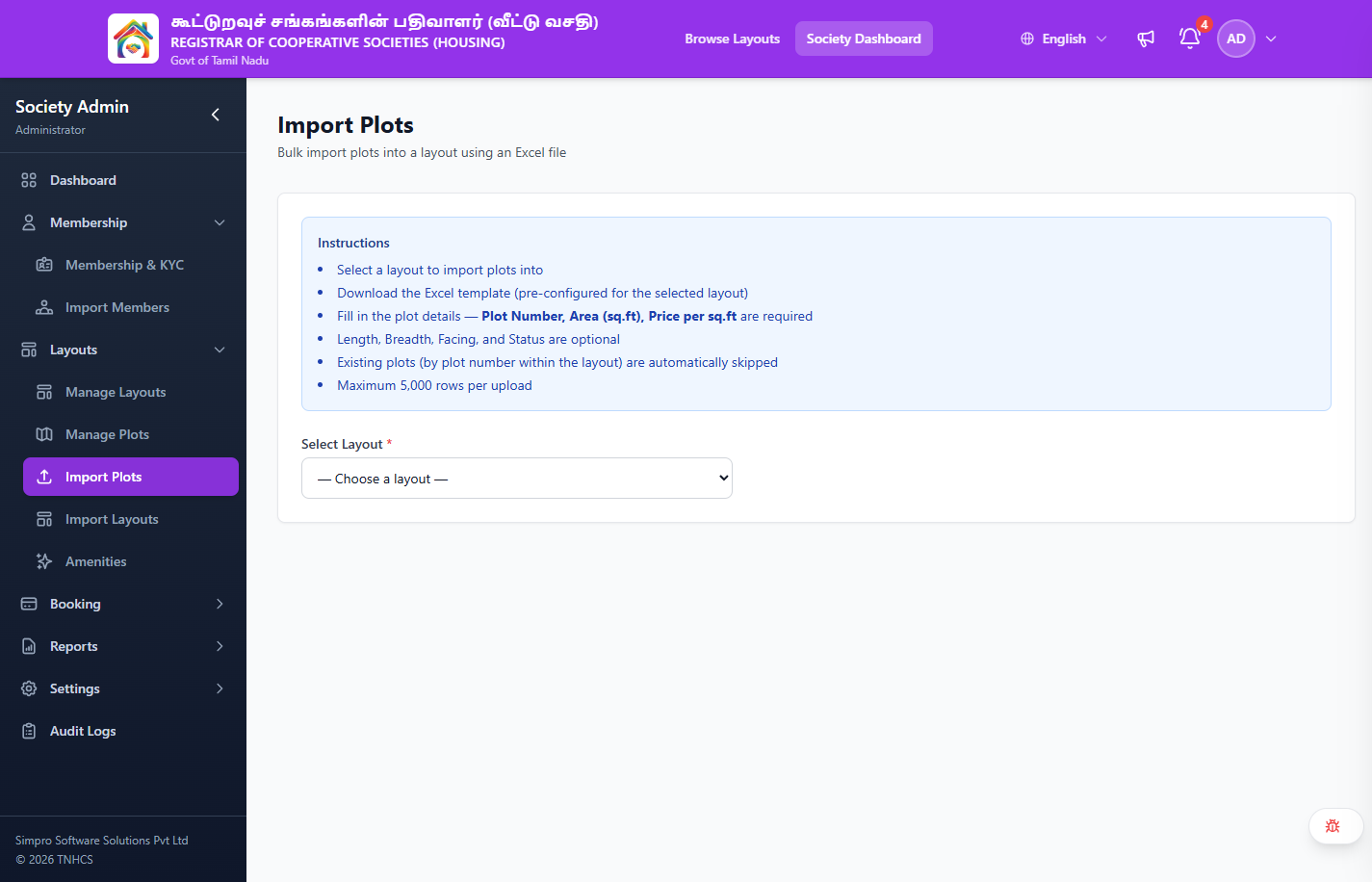
The page title is "Import Plots" — used to bulk import plots into a layout using an Excel file.
Instructions (shown on page)
- Select a layout to import plots into
- Download the Excel template (pre-configured for the selected layout)
- Fill in the plot details — Plot Number, Area (sq.ft), Price per sq.ft are required
- Length, Breadth, Facing, and Status are optional
- Existing plots (by plot number within the layout) are automatically skipped
- Maximum 5,000 rows per upload
Steps
- Select the target Layout from the dropdown (shows layout name, code, and current plot count)
- Click Download Template (appears after selecting a layout)
- Fill in your data and upload
Excel Template Columns
| Column | Required | Description | Example |
|---|---|---|---|
| plot_number | ✅ | Unique plot identifier within the layout | "A-001" |
| area_sqft | ✅ | Plot area in square feet | "1200" |
| price_per_sqft | ✅ | Price per square foot (₹) | "800" |
| length | ❌ | Plot length in feet | "40" |
| breadth | ❌ | Plot width/breadth in feet | "30" |
| facing | ❌ | Direction the plot faces | "East" |
| status | ❌ | Initial status (default: AVAILABLE) | "AVAILABLE" |
Preparing Plot Data
- Ensure plot_number is unique within the layout
- The system calculates base_price = area_sqft × price_per_sqft
- Valid facing values: North, South, East, West, North-East, North-West, South-East, South-West
Layout Import
Navigate to: Sidebar → Layouts → Import Layouts (/admin/layout-import)
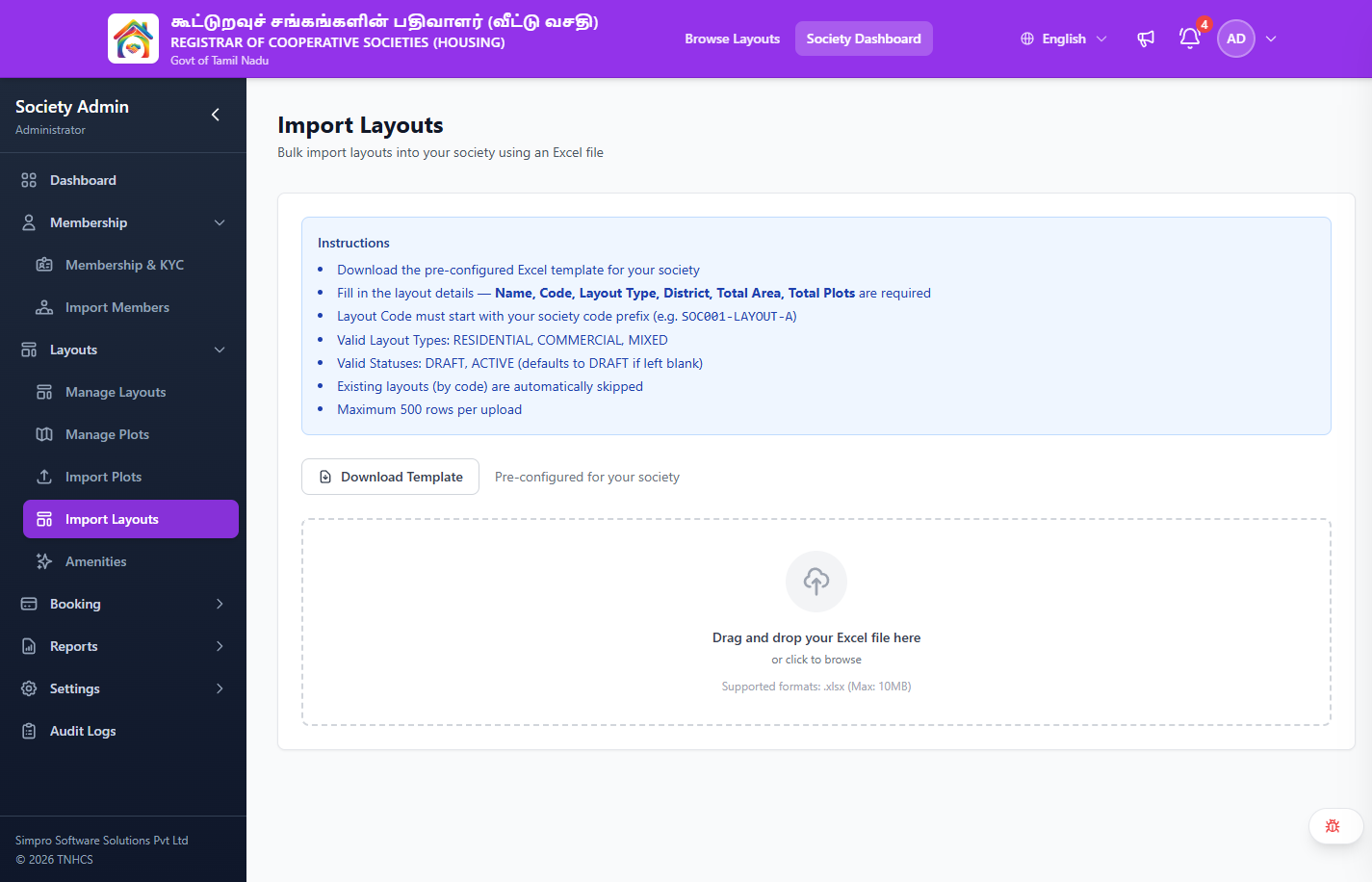
The page title is "Import Layouts" — used to bulk import layouts into your society using an Excel file.
Instructions (shown on page)
- Download the pre-configured Excel template for your society
- Fill in the layout details — Name, Code, Layout Type, District, Total Area, Total Plots are required
- Layout Code must start with your society code prefix (e.g.
SOC001-LAYOUT-A) - Valid Layout Types: RESIDENTIAL, COMMERCIAL, MIXED
- Valid Statuses: DRAFT, ACTIVE (defaults to DRAFT if left blank)
- Existing layouts (by code) are automatically skipped
- Maximum 500 rows per upload
Actions
| Action | Description |
|---|---|
| Download Template | Downloads pre-configured Excel template for your society |
| Upload area | Drag and drop or click to browse — .xlsx format, max 10MB |
Excel Template Columns
| Column | Required | Description | Example |
|---|---|---|---|
| name | ✅ | Layout display name | "Sunrise Garden Phase 2" |
| code | ✅ | Unique layout code (must start with society prefix) | "CMDA-CHN-SGP2" |
| launch_date | ✅ | DD/MM/YYYY | "24-04-2026" |
| district | ✅ | District name | "Chennai" |
| total_area | ✅ | Total area in sq.ft. | "50000" |
| total_plots | ✅ | Expected number of plots | "120" |
| status | ❌ | Initial status (default: DRAFT) | "DRAFT" |
Bulk Payments Import
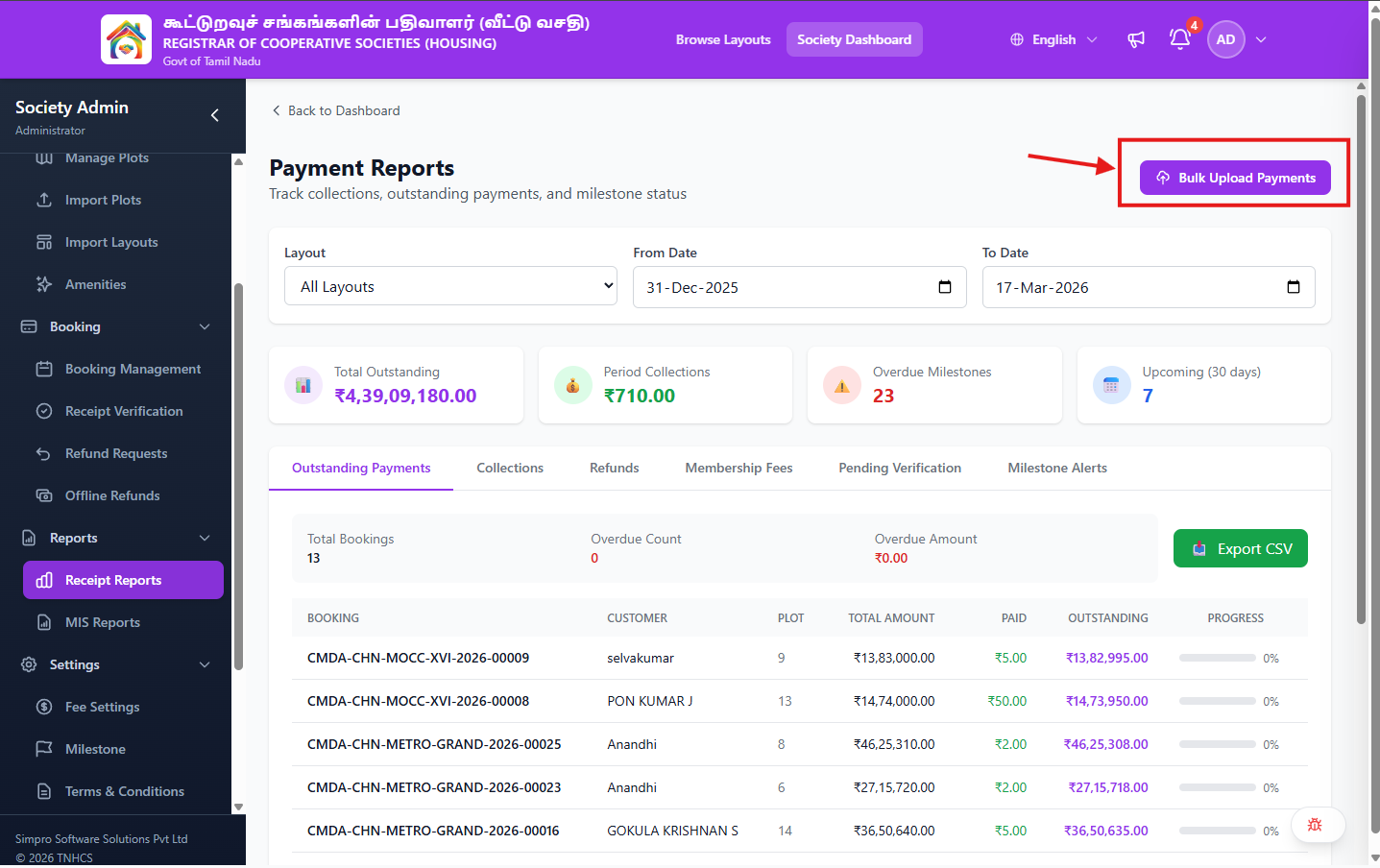
Import offline payment records for multiple bookings at once. This is useful for recording historical payments or batch-processing offline collections.
Navigate to: Sidebar → Reports → Click "Bulk upload Payment" Bulk Payments (or Settings → Bulk Import → Payments)
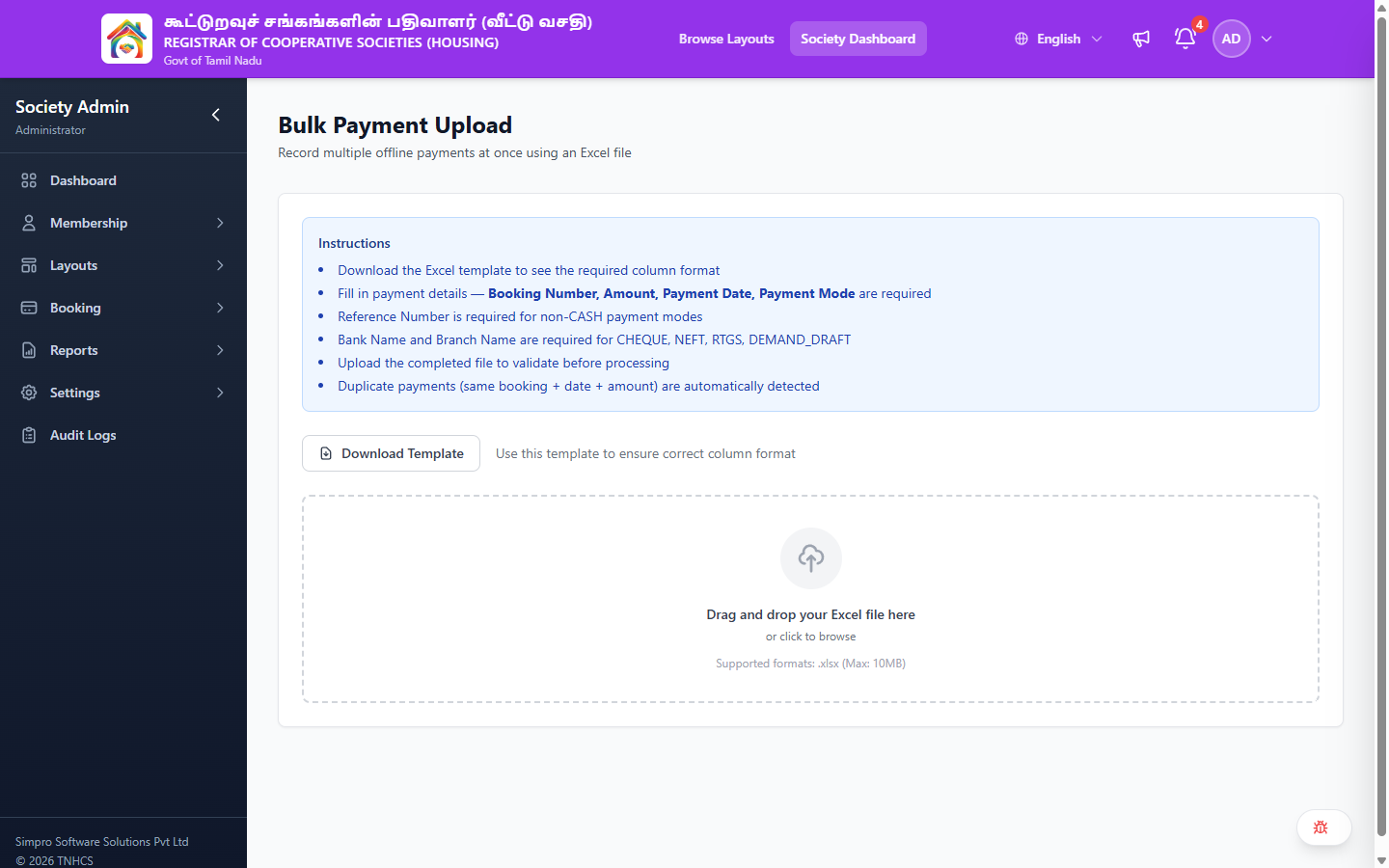
Excel Template Columns
| Column | Required | Description | Example |
|---|---|---|---|
| booking_Number | ✅ | Booking reference or ID | "BK-2024-001" |
| amount | ✅ | Payment amount (₹) | "50000" |
| payment_date | ✅ | Date of payment | "2024-03-15" |
| payment_mode | ✅ | Payment method | "CASH" / "CHEQUE" / "BANK_TRANSFER" |
| reference_number | ❌ | Cheque/transaction reference | "CHQ-12345" |
| remarks | ❌ | Additional notes | "First installment" |
Rules
- Payments are created in PENDING verification status
- Each payment still requires admin verification through the normal verification workflow
- Invalid booking IDs or amounts cause row-level errors
- Duplicate detection prevents recording the same payment twice
Validation Rules
All imports enforce these checks:
| Rule | Description |
|---|---|
| Required fields | Missing required columns cause row-level errors |
| Data types | Numbers must be numeric, dates must be valid, etc. |
| Uniqueness | Plot numbers, email addresses must be unique |
| Referential integrity | Referenced entities (layouts, societies) must exist |
| Business rules | e.g., base_price must be > 0, area must be > 0 |
| Encoding | File must be a valid Excel (.xlsx) format |
Common Scenarios
"My upload fails with 'Invalid format'"
- Ensure the file is saved as
.xlsx(Excel format), not.csvor.xls - Check that column headers match the template exactly (case-sensitive)
- Remove any extra columns or sheets
- Ensure no special characters in the headers
- Re-download the template and try again
"Some rows imported but others failed"
- Download the Error Report after import
- Review failed rows — each will have a specific error message (e.g., "Duplicate email", "Invalid phone format")
- Fix the errors in your Excel file
- Re-upload with only the failed rows (don't re-upload successful rows or you'll get duplicates)
"I imported members but they don't appear as active"
Imported members start with PENDING_VERIFICATION status. You still need to:
- Go to Membership Approval
- Review and approve each imported member
- See Membership Approval for the approval process
"I need to import 500+ plots — will it time out?"
The system handles large imports in batches. For very large files (500+ rows):
- The import may take a few minutes
- A progress indicator shows completion percentage
- Do not close the browser tab during import
- The result summary will be shown when complete
Best Practices
- Always start with the template — download and fill the official template to avoid format issues
- Test with a small batch first — import 5-10 rows to verify your data format is correct before doing the full import
- Keep a backup — save your original file before any modifications
- Use .xlsx format — always save as Excel (.xlsx); the system does not accept .csv or .xls files
- Review the preview — always review the import preview before clicking Confirm
Related Pages
- Membership Approval — Approve imported members
- Layout Management — Create layouts before importing plots
- Plot Management — Manage individual plots after import