Plot Management
Role Required: SOCIETY_ADMIN
Navigation: Sidebar → Layouts → Manage Plots
Last Updated: March 2026 | Portal Version: 1.0
Overview
Plots are the individual land parcels within a layout that citizens purchase. Each plot has unique dimensions, facing direction, pricing, and status. As Society Admin, you create plots, set their pricing, manage their status, and handle bulk operations.
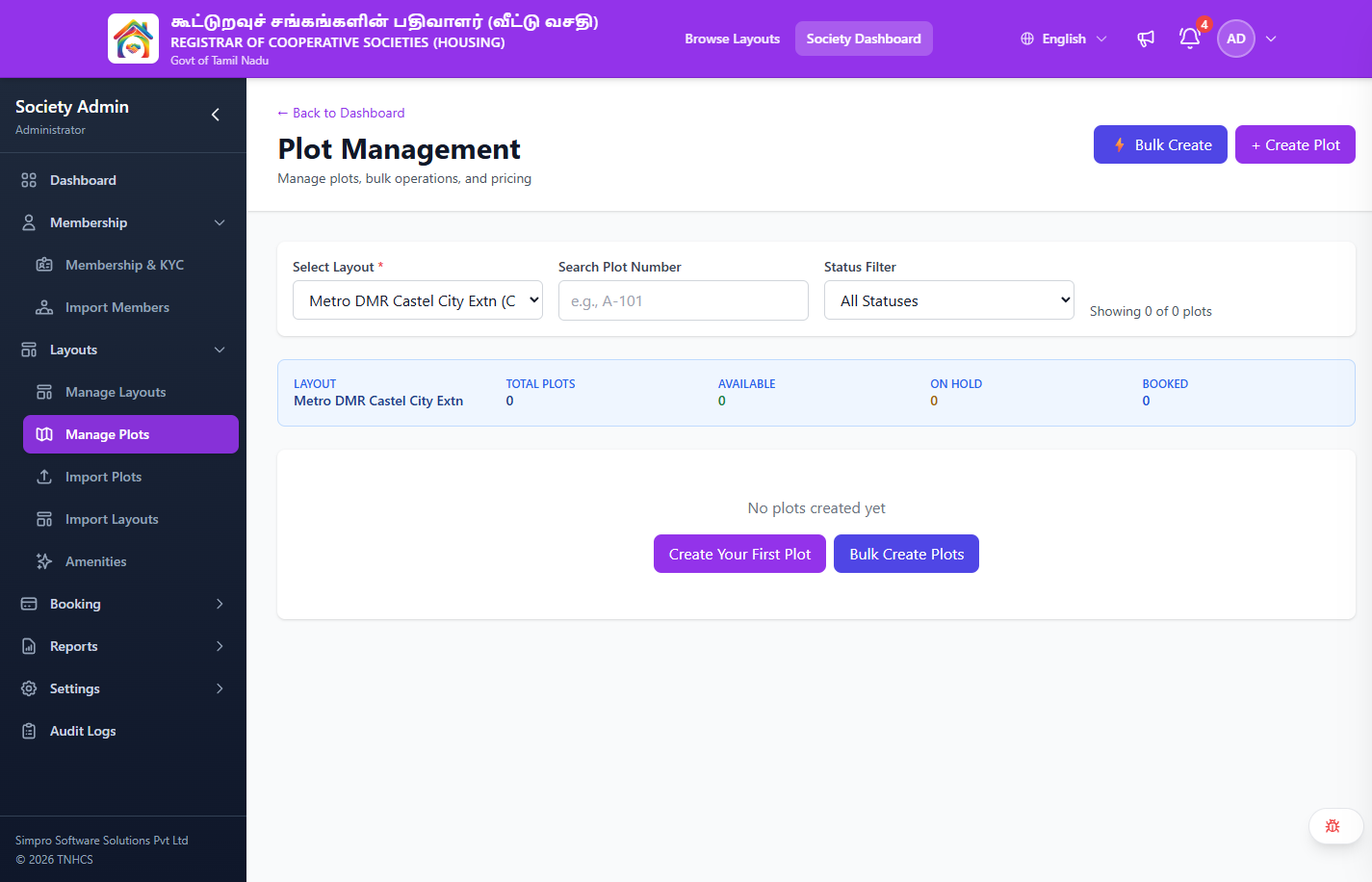
Plot List View
When you navigate to Layouts → Manage Plots, you see the plot management interface.
Header Actions
- ← Back to Dashboard — returns to the admin dashboard
- ⚡ Bulk Create — opens the bulk plot creation form
- + Create Plot — opens the individual plot creation form
Filters
| Control | Description |
|---|---|
| Select Layout | Required dropdown — choose which layout's plots to view |
| Search Plot Number | Text search by plot number (e.g., "A-101") |
| Status Filter | Dropdown: All Statuses, Available, On Hold, Booked |
Summary Cards
After selecting a layout, summary cards display at a glance:
| Card | Description |
|---|---|
| LAYOUT | Name of the selected layout |
| TOTAL PLOTS | Count of all plots in this layout |
| AVAILABLE | Plots available for booking |
| ON HOLD | Plots temporarily reserved |
| BOOKED | Plots with active bookings |
If no plots exist yet, the page shows "No plots created yet" with buttons Create Your First Plot and Bulk Create Plots.
Plot Status Lifecycle
┌───────────┐     Hold      ┌───────────┐    Payment    ┌──────────┐
│ AVAILABLE │──────────────▶│  ON_HOLD   │──────────────▶│  BOOKED  │
│           │◀──────────────│           │   Success      │          │
│ Open for  │  Hold expired │ Temporarily│               │ Active   │
│ booking   │  or released  │ reserved   │               │ booking  │
└───────────┘               └───────────┘               └────┬─────┘
                                                              │
                                                   All payments│complete
                                                              │
                                                         ┌────▼─────┐
                                                         │   SOLD   │
                                                         │          │
                                                         │ Fully    │
                                                         │ paid     │
                                                         └──────────┘
| Status | Meaning | On Plot Map | Can Be Booked |
|---|---|---|---|
| AVAILABLE | Open for booking | 🟢 Green | ✅ Yes |
| ON_HOLD | Temporarily reserved (citizen browsing/paying) | 🟡 Yellow | ❌ No |
| BOOKED | Active booking exists, payments in progress | 🔴 Red | ❌ No |
| SOLD | All payments complete, allotted to member | ⚫ Grey | ❌ No |
Creating Plots
Creating Individual Plots
- Navigate to Layouts → Manage Plots
- Select the layout you want to add plots to
- Click Add Plot
- Fill in the required fields:
| Field | Description | Example |
|---|---|---|
| Plot Number | Unique identifier within the layout | "A-101" |
| Length | Plot length in feet | 40 |
| Width | Plot width in feet | 60 |
| Total Area | Calculated: length × width (or enter manually for irregular plots) | 2,400 sq.ft. |
| Facing | Compass direction the plot faces | East, North, South, West |
| Price per Sq.Ft. | Base price per square foot | ₹2,500 |
| Status | Initial status | AVAILABLE |
- Click Save — the plot is created
Calculated Fields
The system automatically calculates:
- Total Area = Length × Width (for rectangular plots)
- Base Price = Area × Price per Sq.Ft.
- Total Price = Base Price + Government Charges + Processing Fee (per fee configuration)
Editing Plots
- From the plot list, click Edit on any plot
- Modify the fields as needed
- Click Save Changes
Editing a plot's price or dimensions does not affect existing bookings. Changes only apply to future bookings. Booked/Sold plots have limited editable fields.
Bulk Operations
Bulk Pricing Update
Update the price per sq.ft. for multiple plots at once:
- Navigate to the plot list for a layout
- Select multiple plots using the checkboxes
- Click Bulk Actions → Update Pricing
- Enter the new price per sq.ft.
- Review the affected plots and pricing impact
- Confirm the update
Bulk Status Change
Change the status of multiple plots simultaneously:
- Select multiple plots using checkboxes
- Click Bulk Actions → Change Status
- Select the target status (e.g., AVAILABLE → ON_HOLD)
- Confirm the change
Bulk status changes have restrictions — you cannot change the status of BOOKED or SOLD plots through bulk operations. Those require individual booking management.
Plot Polygon Mapping
If your layout has a map image uploaded, you can draw plot boundaries directly on the map:
- Navigate to the layout's Plot Mapper page
- The uploaded map image is displayed as a canvas
- Select a plot from the list
- Use the polygon drawing tool to outline the plot's boundaries on the map
- Click to add vertices, close the shape to finalize
- The polygon data is saved (WKT format) and associated with the plot
- Repeat for each plot
Why Map Plots?
- Citizens can click on a plot on the map to see its details
- Interactive maps increase engagement and booking conversion
- Visual representation helps citizens choose facing, corner plots, etc.
Plot Documents
Attach plot-specific documents:
- Open the plot detail page
- Navigate to the Documents section
- Upload documents such as:
- Sale deed
- Patta (land ownership record)
- Encumbrance certificate
- Site measurement report
- These documents are accessible to the citizen after booking
Excel Import
For bulk plot creation (common during initial layout setup):
- Navigate to Layouts → Import Plots
- Download the Excel (.xlsx) template
- Fill in plot details (one row per plot):
- Plot Number, Length, Width, Area, Facing, Price per Sq.Ft., Status
- Upload the Excel file
- Review validation results — fix any errors
- Confirm the import
Template Columns
| Column | Required | Description |
|---|---|---|
plot_number | ✅ | Unique plot identifier within the layout |
length | ✅ | Length in feet |
width | ✅ | Width in feet |
area | ❌ | Auto-calculated if empty |
facing | ✅ | East / West / North / South |
price_per_sqft | ✅ | Price in ₹ |
status | ❌ | Default: AVAILABLE |
description | ❌ | Optional plot description |
Common Scenarios
"A plot was held but the citizen didn't complete payment"
Plot holds have an automatic expiry time. When a hold expires:
- The plot status automatically returns to AVAILABLE
- The citizen is notified that their hold has expired
- Other citizens can now book the plot
If the hold is still active but you want to release it manually, you can release it from the plot management interface.
"A booking was cancelled — why is the plot still showing as BOOKED?"
After cancellation, the plot transitions back to AVAILABLE only after:
- The cancellation is approved
- The refund process is complete (or waived)
- The booking reaches terminal CANCELLED status
Check the booking's current status in Booking Management.
"I need to split one plot into two"
Plot splitting is not directly supported. You would need to:
- Ensure the original plot has no active bookings
- Delete or deactivate the original plot
- Create two new plots with the adjusted dimensions
"How do I handle corner plots or premium plots?"
Set a higher price per sq.ft. for premium plots. You can also:
- Add facing premiums at the layout level (configured in fee settings)
- Add a description noting the premium features
- Mark corner/premium facing that automatically adds the premium
Related Pages
- Layout Management — The parent layout for these plots
- Booking Management — Monitor bookings on your plots
- Fee Configuration — Pricing rules and facing premiums
- Bulk Import — Excel import details