Amenities
Role Required: SOCIETY_ADMIN
Navigation: Sidebar → Layouts → Amenities
Last Updated: March 2026 | Portal Version: 1.0
Overview
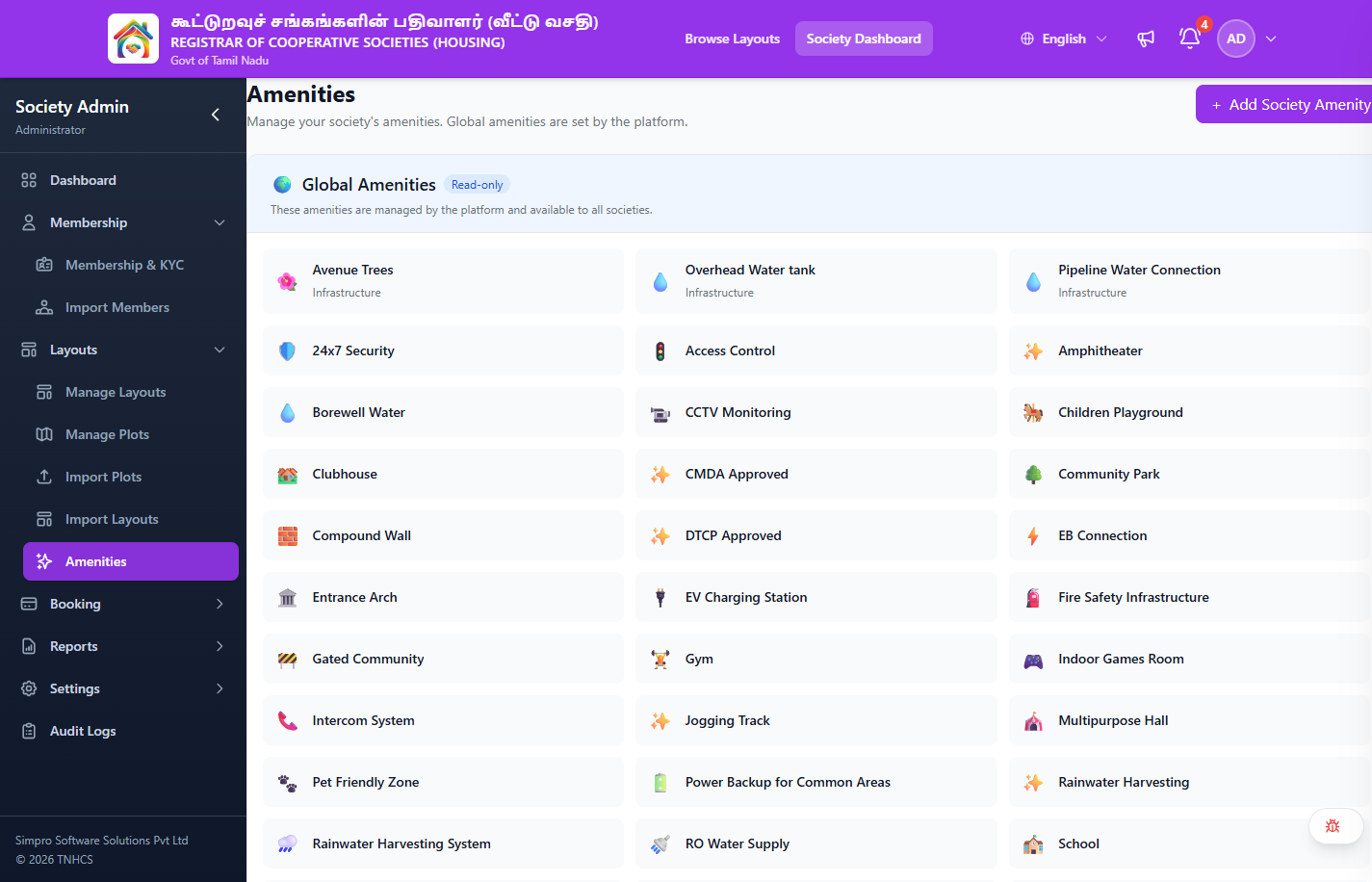
The Amenities page lets you view global amenities (platform-wide, read-only) and create society-specific amenities that can be assigned to your layouts. Amenities describe the features and infrastructure available in a housing layout (e.g., parks, security, water supply).
Key Sections
🌍 Global Amenities (Read-only)
These amenities are managed by the platform and available to all societies. You cannot edit or delete global amenities — they are read-only.
Each global amenity displays:
- Icon — emoji representing the amenity type
- Name — amenity name (e.g., "Avenue Trees", "24x7 Security")
- Category — category label when applicable (e.g., "Infrastructure")
Available Global Amenities
| Amenity | Category |
|---|---|
| Avenue Trees | Infrastructure |
| Overhead Water Tank | Infrastructure |
| Pipeline Water Connection | Infrastructure |
| 24x7 Security | — |
| Access Control | — |
| Amphitheater | — |
| Borewell Water | — |
| CCTV Monitoring | — |
| Children Playground | — |
| Clubhouse | — |
| CMDA Approved | — |
| Community Park | — |
| Compound Wall | — |
| DTCP Approved | — |
| EB Connection | — |
| Entrance Arch | — |
| EV Charging Station | — |
| Fire Safety Infrastructure | — |
| Gated Community | — |
| Gym | — |
| Indoor Games Room | — |
| Intercom System | — |
| Jogging Track | — |
| Multipurpose Hall | — |
| Pet Friendly Zone | — |
| Power Backup for Common Areas | — |
| Rainwater Harvesting | — |
| Rainwater Harvesting System | — |
| RO Water Supply | — |
| School | — |
| Security Cabin | — |
| Senior Citizen Area | — |
| Senior Citizen Sit-out | — |
| Sewage Treatment Plant | — |
| Shopping Complex | — |
| Solar Power Support | — |
| Street Lights | — |
| Swimming Pool | — |
| Tar Road | — |
| Temple | — |
| Underground Drainage | — |
| Visitor Parking Area | — |
| Waste Segregation Facility | — |
| Wheelchair Friendly Access | — |
| WiFi Enabled Common Areas | — |
🏢 Your Society Amenities
Custom amenities specific to your society. These can be assigned to your layouts.
The counter next to the heading shows how many society amenities you have created.
If no society amenities exist, the page shows:
- "No society amenities yet"
- "Create custom amenities for your layouts"
- + Add First Amenity button
Actions Available
| Action | Description |
|---|---|
| + Add Society Amenity | Opens form to create a new society-specific amenity (top-right button) |
| + Add First Amenity | Same action — shown when no society amenities exist yet |
Step-by-Step: Adding a Society Amenity
- Navigate to Layouts → Amenities
- Click + Add Society Amenity (or + Add First Amenity if none exist)
- Fill in the amenity details (name, icon/emoji, optional category)
- Save the amenity
- The new amenity appears under "Your Society Amenities"
- You can then assign it to layouts when creating or editing layouts
Notes & Restrictions
- Global amenities are read-only — managed by the platform administrator
- Society amenities are only visible within your society
- Amenities assigned to a layout appear on the public layout detail page for citizens to see