Terms & Conditions Management
Role Required: SOCIETY_ADMIN
Navigation: Sidebar → Settings → Terms & Conditions
Last Updated: March 2026 | Portal Version: 1.0
Overview
The Terms & Conditions page lets you manage the legal terms that citizens must accept during various workflows (plot booking, membership registration, payments). Terms follow the same hierarchical override model as fees: Global → Society → Layout, where lower levels override higher ones.
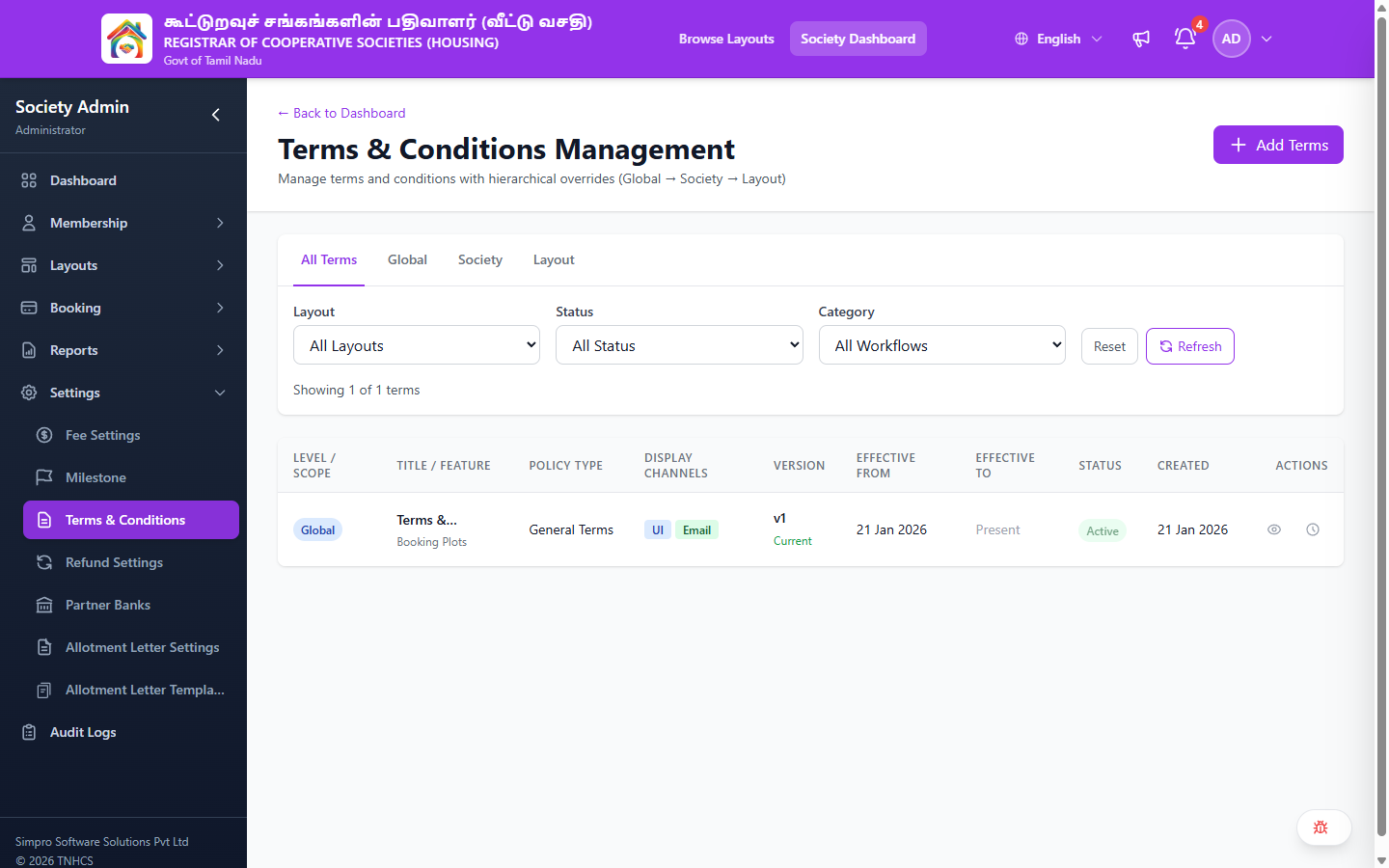
Page Layout
Header Actions:
- ← Back to Dashboard — Returns to admin dashboard
- Add Terms — Create a new terms & conditions entry
Level Tabs:
| Tab | Description |
|---|---|
| All Terms | Shows terms at all levels |
| Global | Platform-wide terms set by Super Admin |
| Society | Terms specific to your society |
| Layout | Terms specific to individual layouts |
Filters:
| Filter | Options |
|---|---|
| Layout | All Layouts, or select a specific layout |
| Status | All Status, Active, Inactive |
| Category | All Workflows, Plot Workflows, Membership Workflows, Payment Workflows |
Additional controls: Reset button, Refresh button, result count (e.g., "Showing 1 of 1 terms")
Terms Table
| Column | Description |
|---|---|
| Level / Scope | Global, Society, or Layout-specific badge |
| Title / Feature | Terms title and the feature/workflow it applies to (e.g., "Booking Plots") |
| Policy Type | Type of terms (e.g., General Terms) |
| Display Channels | Where the terms are shown — UI, Email, or both |
| Version | Version number with "Current" badge for the active version |
| Effective From | Start date when terms take effect |
| Effective To | End date, or "Present" if currently active with no expiry |
| Status | Active or Inactive |
| Created | Date the terms entry was created |
| Actions | Preview — View the terms content, View History — See version history |
How Terms Work
- Terms are displayed to citizens during the relevant workflow (e.g., before plot booking)
- Citizens must accept the terms before proceeding
- The system records which version of the terms the citizen accepted
- If terms are updated (new version), citizens see the new version on their next action
Hierarchical Overrides
Terms follow the same hierarchy as fees:
GLOBAL (platform-wide defaults)
  ↓ overridden by
SOCIETY (your society-specific terms)
  ↓ overridden by
LAYOUT (specific to a particular layout)
If you create a society-level terms entry for "Booking Plots", it will override the global version for all layouts in your society. A layout-level entry would further override for that specific layout.
Related Pages
- Fee Configuration — Similar hierarchical override model for fees
- Settings — Other society settings