Alerts & Escalations
Role Required: STATE_ADMIN
Navigation: Top Navbar → State Dashboard → scroll to Alerts & Action Items section
Last Updated: March 2026 | Portal Version: 1.0
Overview
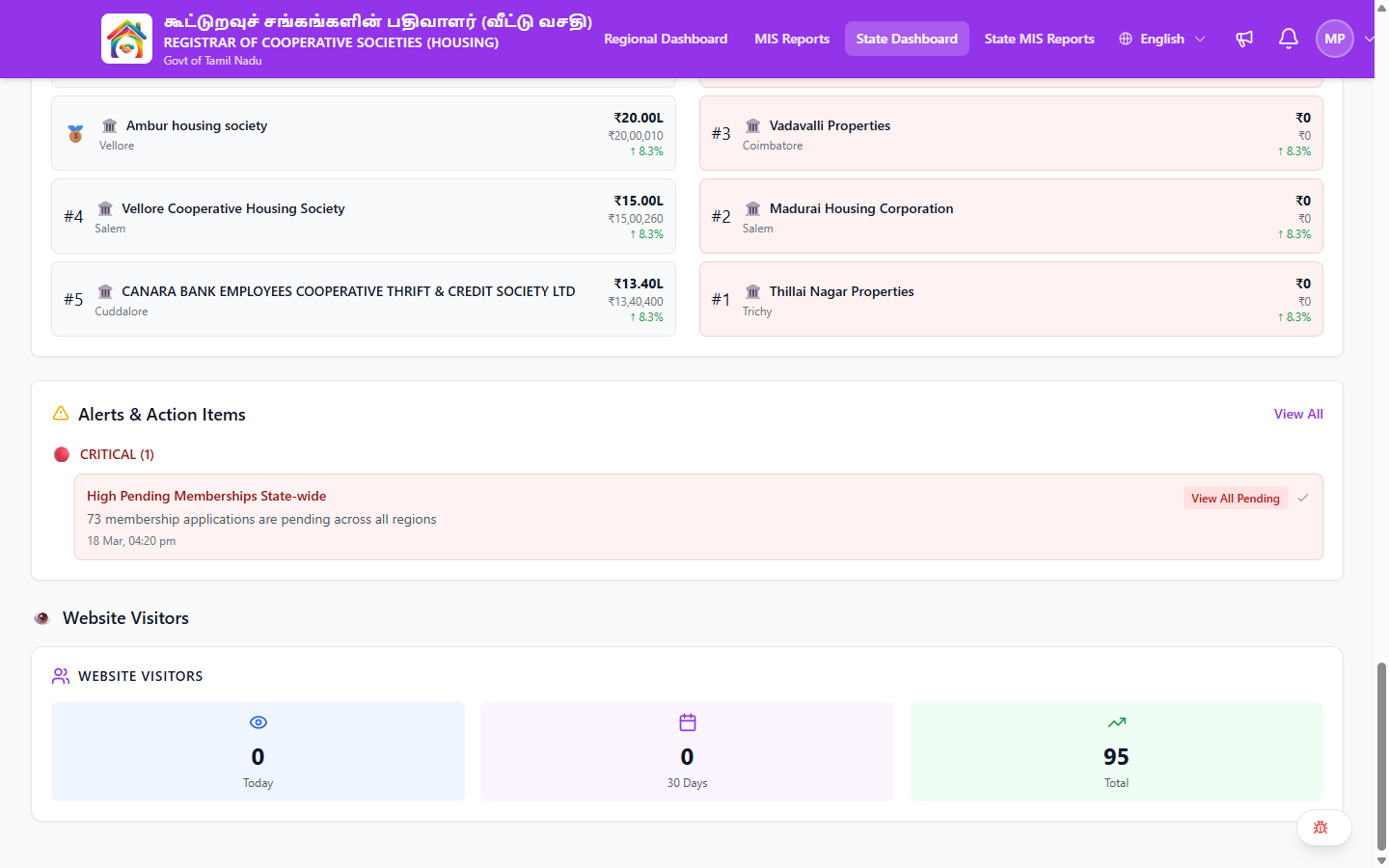
As a State Admin, you receive alerts that have been escalated to the state level. These appear in the Alerts & Action Items section on both the State Dashboard and the Regional Dashboard. You can review, acknowledge, and take action on these alerts.
Viewing Alerts
On the State Dashboard
The State Dashboard shows state-wide alerts in the Alerts & Action Items section:
- Alerts are grouped by severity (🔴 CRITICAL, 🟡 WARNING, ℹ️ INFO)
- A count is displayed next to each severity level
- Click View All to see the full list
On the Regional Dashboard
When viewing a specific region via the Regional Dashboard:
- Alerts are filtered to that region only
- Same severity grouping and format
Alert Details
Each alert shows:
| Element | Description |
|---|---|
| Title | What the alert is about (e.g., "High Pending Memberships State-wide") |
| Description | Details including affected counts (e.g., "73 membership applications are pending across all regions") |
| Timestamp | When the alert was generated |
| Action Buttons | Context-specific actions (e.g., "View All Pending", "Acknowledge") |
Alert Severity Levels
| Severity | Icon | Meaning | Response Time |
|---|---|---|---|
| CRITICAL | 🔴 | Requires immediate state-level intervention | Same day |
| WARNING | 🟡 | Needs review and potential action | Within 2-3 days |
| INFO | ℹ️ | Informational — no immediate action required | Next review cycle |
Handling Alerts
Step-by-Step
- Review the alert title and description
- Click the action button (e.g., "View All Pending") to see the affected items
- Investigate using the Regional Dashboard or MIS Reports if needed
- Take action — contact Regional Admin, drill into the affected region/society
- Acknowledge — click the "Acknowledge" button to mark the alert as reviewed
When to Acknowledge
- You've reviewed the alert and understand the issue
- You've taken action or delegated to the appropriate person
- The alert doesn't require further tracking at this level
Escalation Hierarchy
Society Admin → Regional Admin → State Admin → Super Admin
When Issues Escalate to You
| Trigger | What It Means |
|---|---|
| State-level alert | Automatically generated for state-wide thresholds (e.g., high pending memberships) |
| Regional Admin escalation | Issue couldn't be resolved at regional level |
| Cross-region issue | Affects multiple regions simultaneously |
| Policy violation | Compliance issue needing state-level attention |
When to Escalate to Super Admin
| Situation | Reason |
|---|---|
| Security breach suspected | Super Admin can block users/societies |
| Admin misconduct | Requires user management action |
| System-wide financial irregularity | Needs platform-level investigation |
| Policy change needed | Super Admin manages platform policies |
Recent Activity
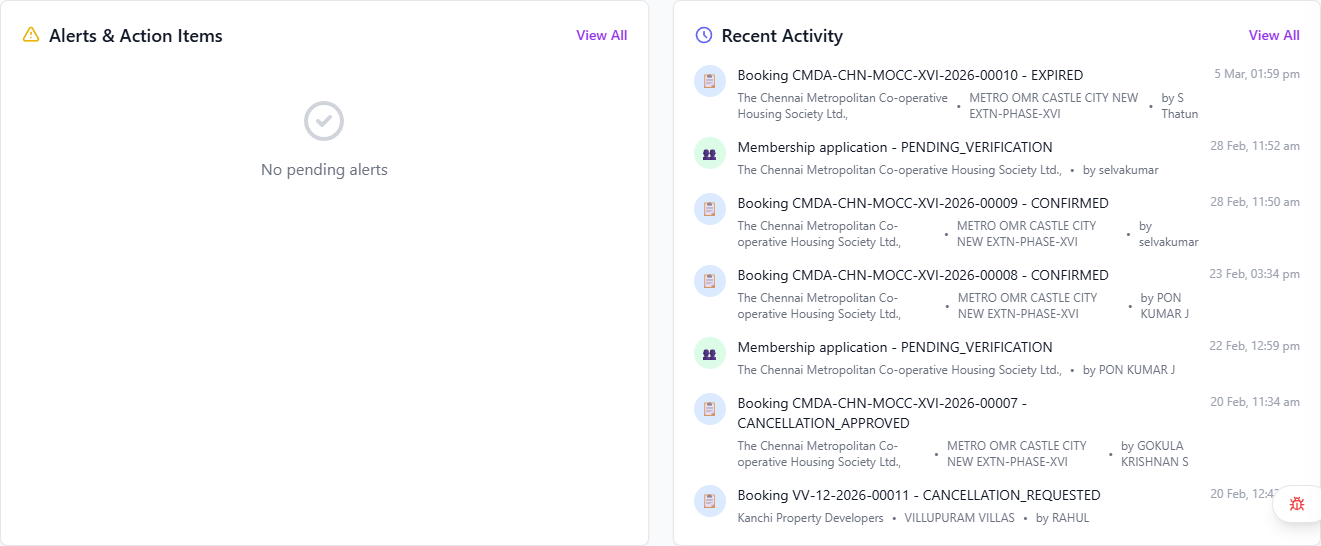
On the Regional Dashboard, the Recent Activity section shows a timeline of recent actions across the selected region:
| Activity Type | Icon | Examples |
|---|---|---|
| Booking events | 📋 | New bookings, confirmations, cancellations, expirations |
| Membership events | 👥 | New applications, pending verifications |
Each entry shows: event description, society name, layout (if applicable), member name, and timestamp.
Investigating Issues
Financial Concerns
- Identify the scope: Which region/society? What time period?
- Check the State Dashboard: Review KPA cards and Regional Performance table
- Drill down: Use the Regional Dashboard to view affected societies
- Review MIS Reports: Check Revenue and Outstanding columns
- Export data: Use Export CSV from MIS Reports for detailed analysis
Performance Issues
- Check the State Dashboard: Review Regional Performance table for 🔴 regions
- Review Target Trackers: Any KPAs showing "Critical"?
- Drill into region: Use the Regional Dashboard to see society-level performance
- Check trends: Are booking/collection trends declining?
Common Scenarios
"A critical alert says memberships are pending state-wide"
- Click View All Pending on the alert to see the pending count
- Go to the State Dashboard → Regional Performance table to see which regions have societies
- Use the Regional Dashboard to check each region's Membership Pipeline section
- Contact Regional Admins with specific numbers and request prioritised processing
"I need to investigate unusual activity in a society"
- Go to Regional Dashboard → select the region containing the society
- Check Recent Activity for the timeline of events
- Click View on the society in the Society-Wise Performance table
- Review booking and membership details within the society
"A Regional Admin escalated an issue to me"
- Read the alert details on the State Dashboard
- Go to the Regional Dashboard → select the affected region
- Review the Alerts & Action Items and Recent Activity sections
- Click View on the affected society for detailed investigation
- Make a decision: resolve directly, delegate back with instructions, or escalate to Super Admin
Related Pages
- State Dashboard — Alerts overview and performance data
- Regional Oversight — Region-level investigation
- Policy & Compliance — Compliance-related alerts
- State Financial Reports — Financial investigation data