Society Layouts (Read-Only)
Role Required: REGIONAL_ADMIN
Navigation: Society View → Browse Society Data → View Layouts (or Society View header → Browse Layouts button)
Route:/admin/societies/:id/layouts
Last Updated: March 2026 | Portal Version: 1.0
Overview
The Society Layouts page displays all layouts belonging to a specific society. You can view layout details, search, filter by status, and click into a layout to see its public listing page. All access is read-only.
How to Access
- From the Regional Dashboard, click View on a society
- On the Society View page, scroll to "Browse Society Data"
- Click the View Layouts card
- The Layouts listing page opens
A breadcrumb trail at the top shows: Regional Dashboard > Society Name > Layouts
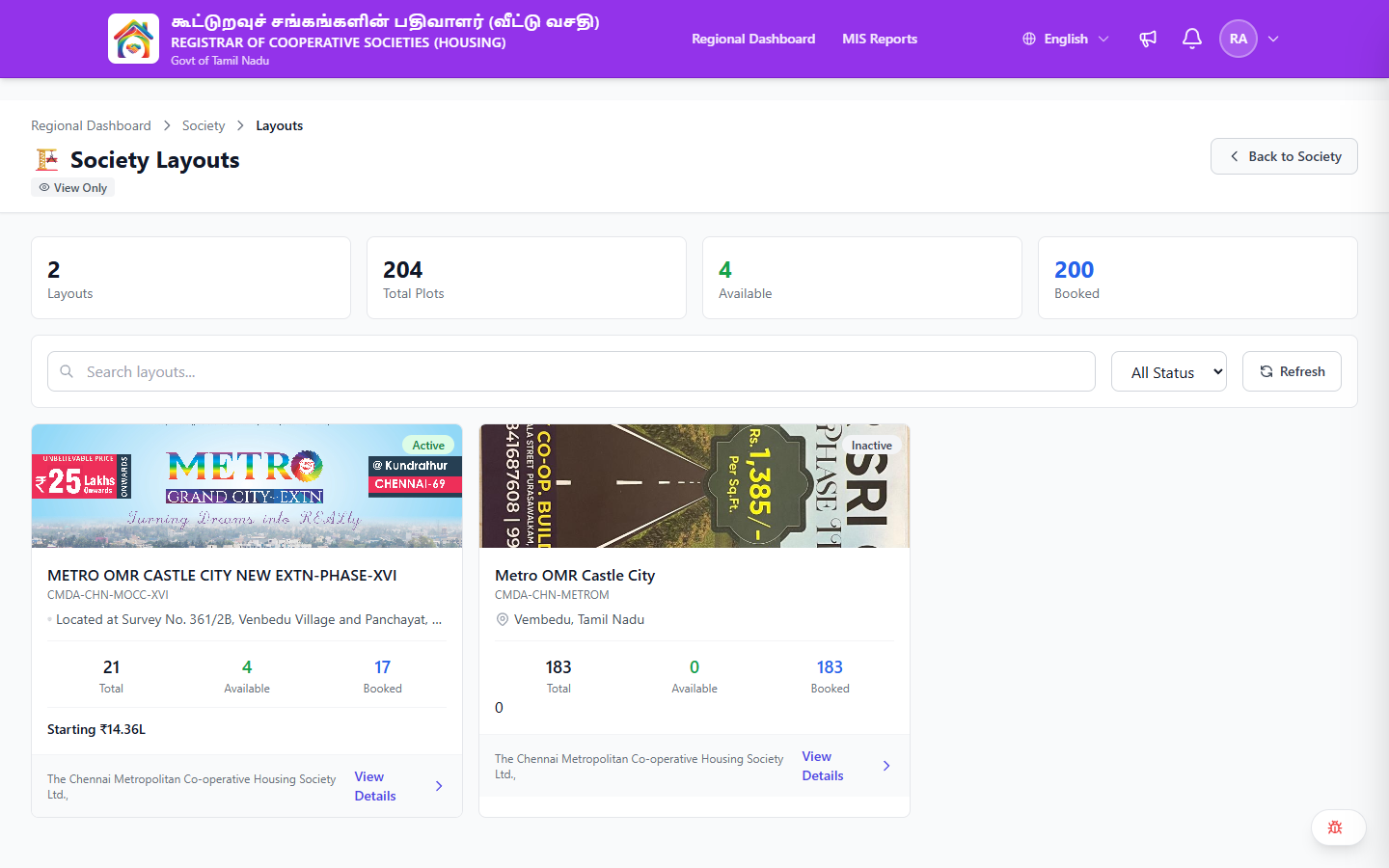
Page Header
| Element | Description |
|---|---|
| Breadcrumb | Clickable navigation trail: Regional Dashboard > Society > Layouts |
| Title | "🏗️ Society Layouts" (with building icon) |
| View Only badge | Badge with lock icon confirming read-only access |
| Back to Society button | Returns to the Society View page |
Summary Stats
Four summary cards at the top:
| Card | Description |
|---|---|
| Layouts | Total number of layouts in this society |
| Total Plots | Total plots across all layouts |
| Available | Plots available for booking |
| Booked | Plots currently booked |

Search and Filters
A toolbar below the summary stats provides:
| Control | Description |
|---|---|
| Search bar | Search layouts by name or code |
| Status filter | Dropdown with options: All Status, Active, Draft, Inactive, Sold Out |
| Refresh button | Reloads the layout list |

Layout Cards
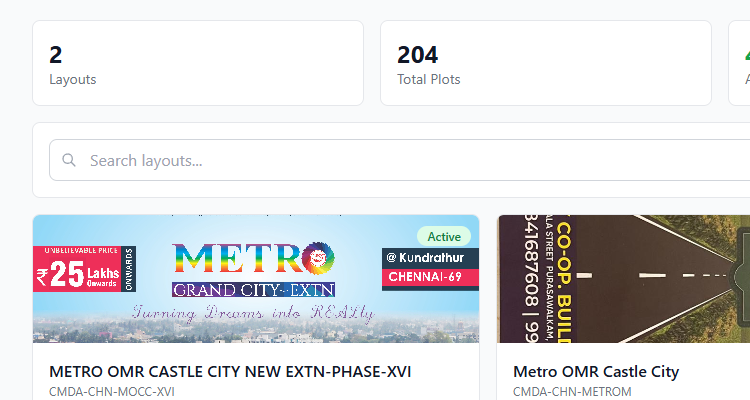
Each layout appears as a card containing:
| Element | Description |
|---|---|
| Layout image | Thumbnail image of the layout (or placeholder if not set) |
| Status badge | Current status — Active (green), Draft (gray), Inactive (red), Sold Out (purple) |
| Layout name | Full name (e.g., "METRO OMR CASTLE CITY NEW EXTN-PHASE-XVI") |
| Layout code | Unique code (e.g., "CMDA-CHN-MOCC-XVI") |
| Location/Description | Location pin icon with address or description text |
| Plot counts | Shows: Total, Available, Booked |
| Starting price | Lowest plot price in the layout (e.g., "Starting ₹14.36L") |
| Society name | The parent society name displayed at the card footer |
| View Details link | Link text with arrow icon to view the layout's public page |
Viewing a Layout's Public Page
Clicking on a layout card opens its public listing page (route: /layouts/:id). This is the same page visible to the general public and shows:
- Layout name, location, and description
- Plot map or grid (if configured)
- Plot list with prices and availability
- Society branding and contact information
Clicking on a layout navigates to the public-facing page (/layouts/:id), not an admin view. Press the browser back button to return to the layouts list.
What to Look For
| Aspect | What to Check |
|---|---|
| Inventory balance | Are there layouts with many Available plots that aren't moving? |
| Status accuracy | Are layouts in "Draft" that should be "Active"? |
| Pricing | Is the starting price competitive for the area? |
| Sold Out layouts | Good indicator of healthy demand |
Common Scenarios
"I want to quickly check how many plots are left in a layout"
- Navigate to the society's Layouts page
- Each layout card shows Available, Booked, and Sold counts
- No need to click into the layout itself
"I need to find a specific layout"
- Use the Search bar to type the layout name or code
- The list filters in real time
"I want to see only active layouts"
- Click the Status filter dropdown
- Select Active
- The list updates to show only active layouts
Related Pages
- Society View — Parent page with society KPAs and browse options
- Regional Dashboard — Region-level overview
- MIS Reports — Aggregate reports across all societies